Aleksandra D.
 > TL;DR: The robots.txt file in WordPress controls which parts of your site search engines can crawl and index. Setting it up right can boost your SEO, but a single misplaced rule can block important pages from Google. I’ve seen sites accidentally hide half their content because of this — so handle it carefully and test changes.
Written by Daniel Dimov.
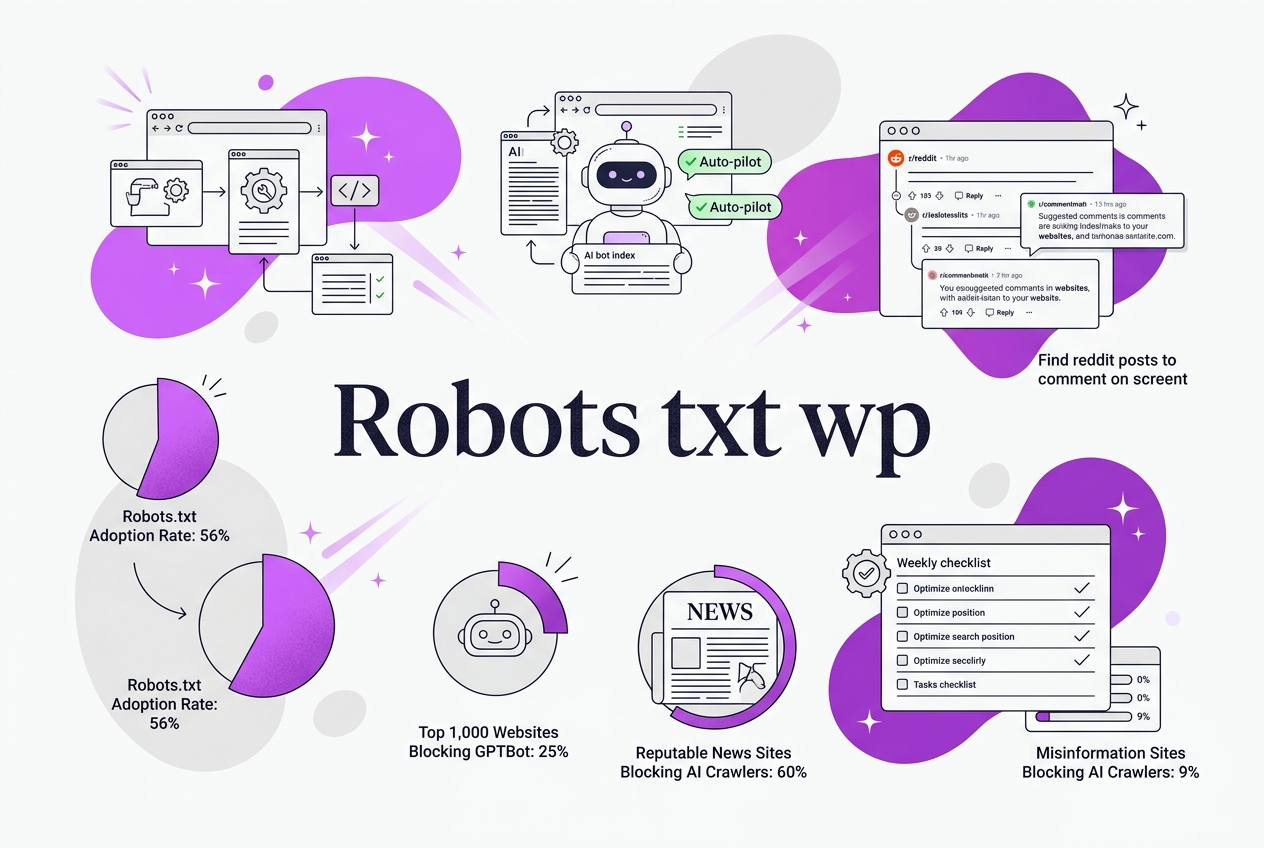
Managing your WordPress site's robots.txt can feel like juggling invisible rules—too strict, and search engines might ignore important pages; too loose, and you risk exposing sensitive content. Surprisingly, over half of websites had a robots.txt file in 2023, showing how common this essential tool is for controlling site visibility. Still, many site owners don’t realize that a small misstep in configuring this file can seriously hamper SEO or waste crawl budget. This guide cuts through the jargon and shows you exactly how to create, customize, and troubleshoot your robots.txt in WordPress so you get control without confusion.
Written by Daniel Dimov.
| Point | Details |
|---|---|
| Robots.txt Purpose | Over 56% of websites in 2023 used robots.txt files to control how search engines crawl. |
| WordPress Integration | WordPress lets you create or customize your robots.txt, often via plugins or server files. |
| Common Directives | "Allow," "Disallow," and "Sitemap" show up in 60% to 77% of robots.txt files, guiding bots efficiently. |
| Blocking AI Bots | About 25% of top websites blocked AI crawlers like GPTBot through robots.txt in 2023. |
| Best Practices | Test and update your robots.txt regularly, but avoid blocking content essential for SEO. |
Written by Daniel Dimov.
Understanding Robots.txt in WordPress: What It Is and Why It Matters
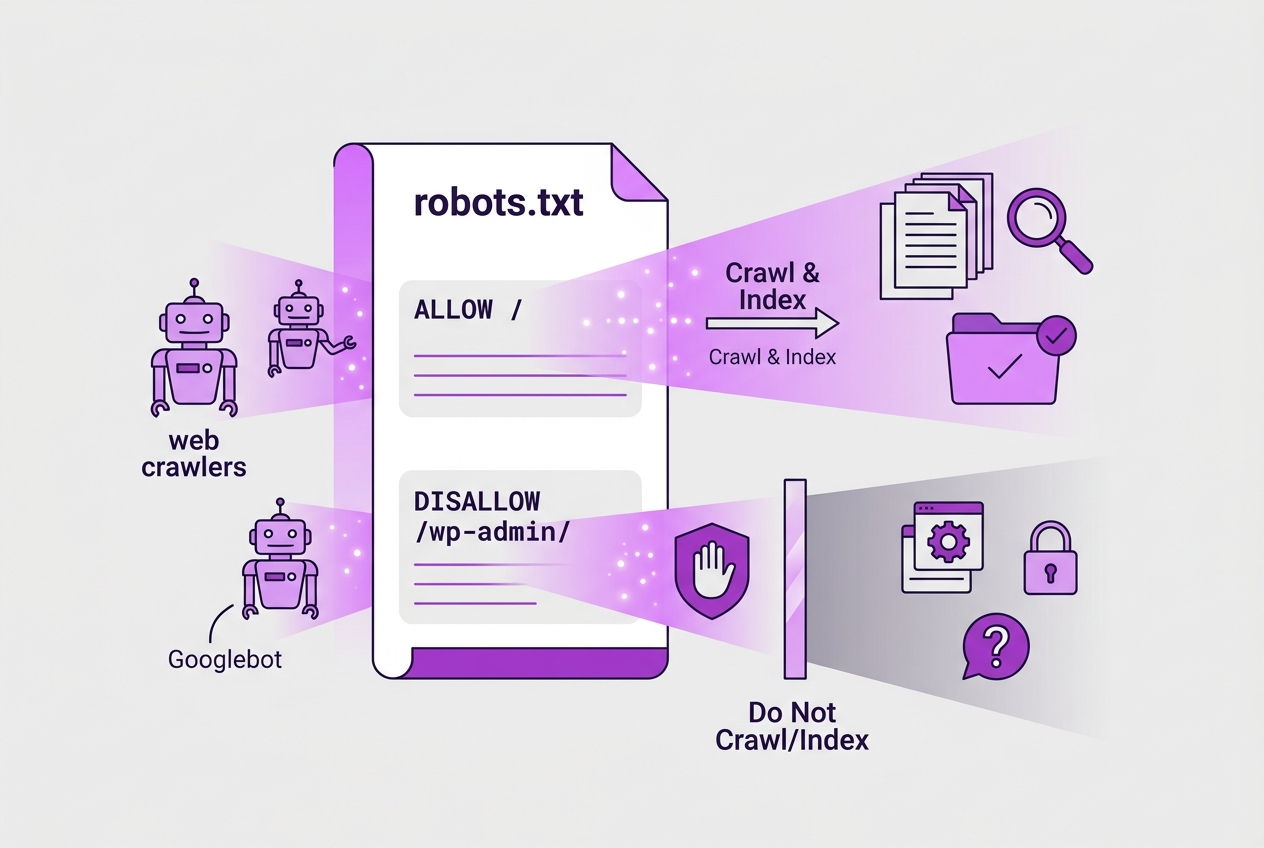
A robots.txt file is essentially a set of rules for web crawlers, telling them which parts of your website they can or cannot visit. Think of it as a traffic controller, directing search engines like Googlebot on which pages to crawl and index. This control helps ensure that only the most important parts of your site appear in search results, while less relevant or sensitive areas stay hidden.
In WordPress, a robots.txt file is often generated automatically by the platform if one isn't already present in the site’s root directory. WordPress creates a virtual robots.txt dynamically, giving baseline rules to web crawlers, which can be overridden by manually creating or editing a robots.txt file in your hosting root folder. But the default file tends to be generic — it doesn’t cover nuances like blocking specific directories or managing crawl delays.
Managing crawl traffic properly matters a lot. Every time a crawler hits your server, it uses resources and bandwidth. Uncontrolled crawling can slow down your website and even lead to server overloads during traffic spikes. On the SEO side, you don’t want search engines wasting crawl budget on irrelevant pages like plugin folders or staging sites, because that can dilute your site's overall ranking potential.
Statistics back this up: in 2023, 56% of all websites had a robots.txt file, highlighting how widely recognized its importance has become. Notably, 77% of these files included sitemap declarations, which help search engines find your URLs faster. Also, 60% used an 'allow' directive to fine-tune permissions, and 20% added a 'crawl-delay' to balance server load.
Here's a quick rundown of common directives you'll see in a WordPress robots.txt file:
| Directive | Purpose |
|---|---|
| User-agent | Specifies which crawler the rule applies to |
| Disallow | Blocks access to specified directories or files |
| Allow | Permits crawling of subfolders or specific files |
| Sitemap | Points crawlers to the sitemap location |
| Crawl-delay | Sets delay between requests to reduce server strain |
Pro Tip: Boldly test changes on a staging site before pushing live to avoid accidental SEO damage.
Understanding how WordPress handles robots.txt sets a solid foundation. Next, we'll explore how to customize your robots.txt file to optimize crawling and protect your site’s SEO health.
How to Create and Customize Robots.txt in WordPress
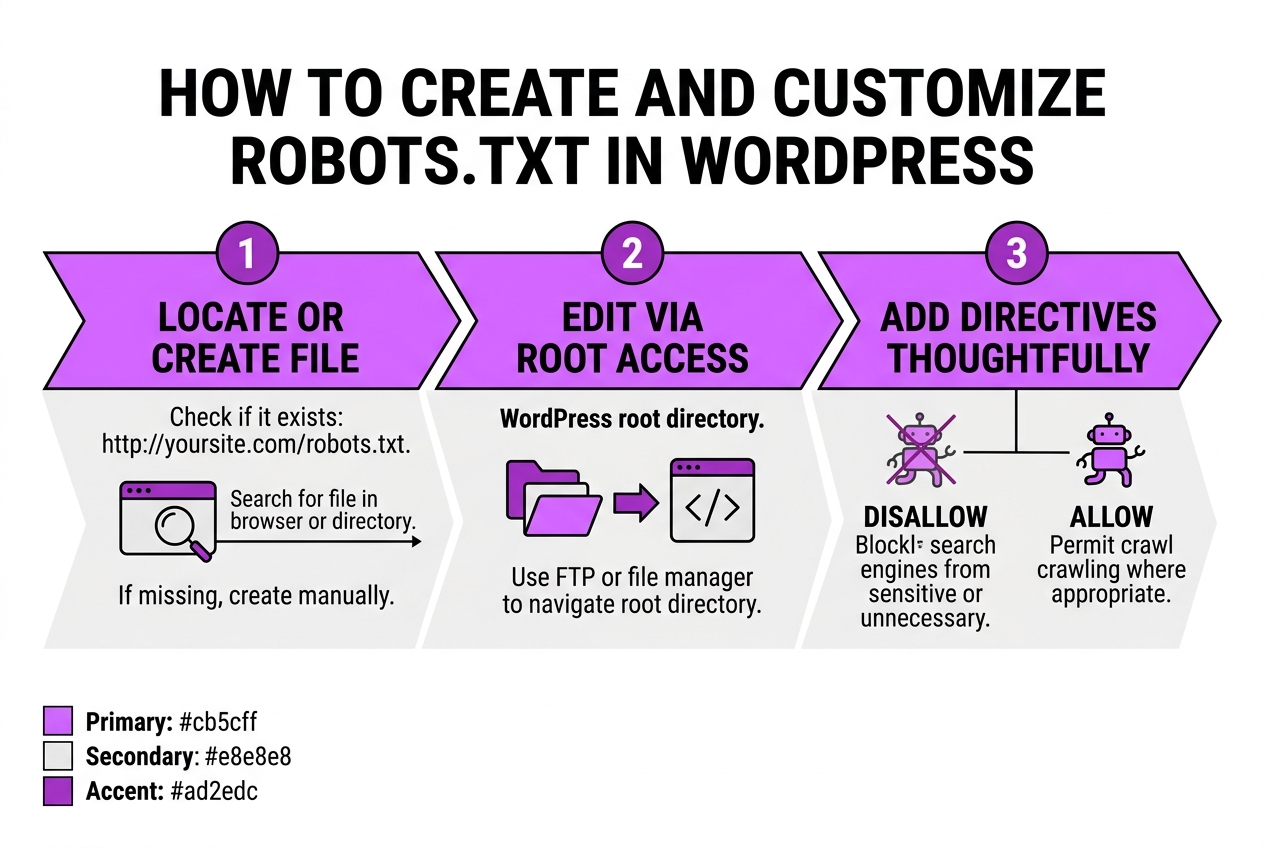
Creating or editing a robots.txt file in WordPress is easier than most people think, but it does have its quirks. Here's how you can do it step-by-step without breaking your site’s SEO.
-
Locate or create your robots.txt file: First, check if your WordPress site already has a robots.txt file in the root directory. You can do this by visiting
https://yoursite.com/robots.txt. If it doesn't exist, you’ll need to create one manually. -
Edit via root file access: If you’re comfortable with FTP or your hosting file manager, navigate to your WordPress root directory and open or create the robots.txt file. This is where you’ll add your rules.
-
Add
DisallowandAllowdirectives thoughtfully: UseDisallowto block search engines from crawling sensitive or unnecessary areas (like/wp-admin/or/wp-login.php). UseAllowto override blocks for specific files or folders when needed. Remember, too many broadDisallowdirectives can choke your crawl budget. -
Include your sitemap URL: Adding your sitemap’s URL with
Sitemap: https://yoursite.com/sitemap.xmlhelps crawlers discover your pages faster. According to industry observations, 77% of websites include this, and it’s one of the easiest ways to boost SEO impact. -
Use WordPress plugins for easier management: Plugins like Yoast SEO or Rank Math offer built-in editors for robots.txt, removing the need for FTP access and reducing the chance of harmful edits. These plugins also handle updates safely.
Pro Tip: Use WordPress SEO plugins with built-in robots.txt editor for easier maintenance.
-
Verify changes: After editing, check your robots.txt file live by visiting the URL again. To catch errors, use tools like Google Search Console’s robots.txt Tester. It’ll tell you if your rules block or allow specific pages as intended.
-
Test with different user agents: Some bots respect robots.txt more strictly than others. It's worth testing with at least Googlebot’s user agent to ensure your most important crawlers are getting the right instructions.
This method isn’t flawless — editing the file manually can lead to syntax errors, and relying fully on plugins sometimes means you miss nuances. But combining both approaches smartly will keep your site crawl-friendly and protect sensitive content.
When you get this setup right, you’ll find fewer issues with search engine indexing and more precision in what visitors can find. Next, we’ll explore how robots.txt fits into your broader WordPress SEO strategy to maximize your site’s visibility.
Written by Daniel Dimov.
Common Robots.txt Mistakes in WordPress and How to Avoid Them
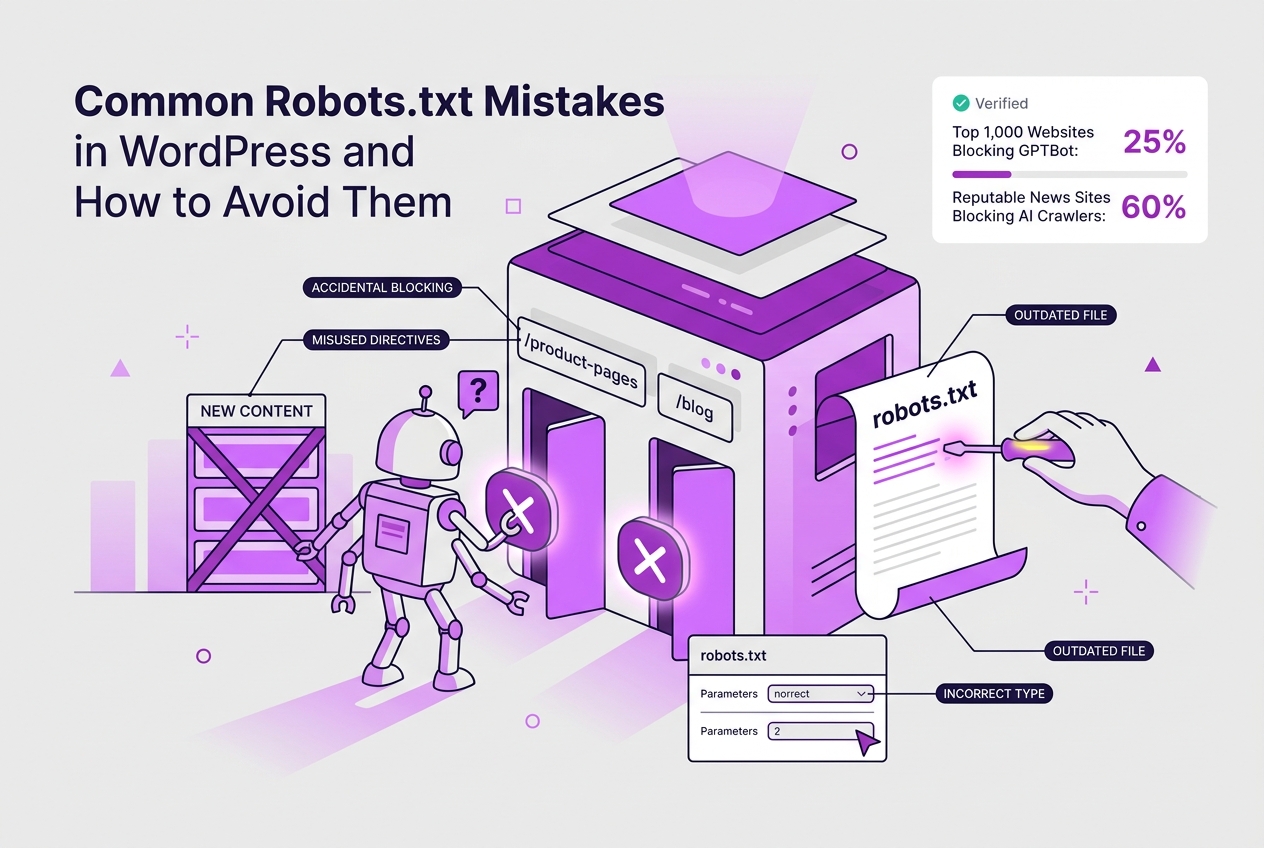
One of the trickiest parts of managing robots.txt in WordPress is avoiding simple but costly mistakes. These errors can seriously hamper your site's visibility or the way search engines crawl your content. Here are the most common slips I’ve seen:
- Accidentally blocking important pages or even entire directories, like your main product pages or essential blog posts.
- Misusing the
crawl-delaydirective, which about 20% of websites include, but often misconfigure or misunderstand its actual support among search engines. - Failing to update the robots.txt file after making significant site changes, such as redesigns or new section launches.
- Overlooking the deliberate blocking of AI crawlers, which some sites apply strategically to control data scraping.
- Neglecting to test the robots.txt file, leading to unintended SEO problems like orphaned pages or missing sitemap declarations.
Pro Tip: Keep a backup of your robots.txt before edits for quick recovery.
For example, misusing crawl-delay can slow down how often Googlebot crawls your site—yet not all bots respect this rule. On WordPress, it’s easy to accidentally block stylesheets or JavaScript crucial for rendering, breaking how Google sees your pages. Some sites block AI-specific bots like GPTBot, a move increasingly common but one you should weigh carefully against potential lost visibility.
Updating your robots.txt after site overhauls is crucial. Forgetting this step can cause search engines to miss new pages or still crawl old ones that no longer exist. Testing tools exist, but skipping this final check remains a common pitfall that I always warn about.
Avoid these mistakes by routinely auditing your robots.txt as part of site maintenance. If you want to get better control and insights, explore the Features offered by platforms like TryRoki that help automate content and SEO tasks.
Next, let’s look at how you can fine-tune your WordPress robots.txt for specific SEO goals without tripping over these common errors.
Written by Daniel Dimov.
Blocking AI Crawlers with Robots.txt: What WordPress Site Owners Need to Know
AI crawlers like GPTBot are automated agents that scan the web to gather data for training AI models. While many see this as a way to contribute to the development of better AI, some site owners are wary. They worry about data misuse, unauthorized content scraping, or privacy issues. That’s why blocking these bots via your WordPress site's robots.txt can feel like a necessary line of defense.
Interestingly, there’s a sharp divide on who blocks these crawlers. Reputable news outlets tend to have strict rules in their robots.txt files—about 60% disallow at least one AI crawler. They want to protect their original content and control how it’s accessed and reused. On the flip side, misinformation websites block AI crawlers far less—only 9% take that step, perhaps because they want their misleading content to spread.
Here's a quick breakdown from 2023 data to frame the landscape:
| Site Type | Percentage Blocking GPTBot |
|---|---|
| Top 1,000 Websites | 25% |
| Reputable News Sites | 60% |
| Misinformation Sites | 9% |
Blocking GPTBot or similar AI crawlers often means your site’s content won’t be included in AI training datasets. That can save your original work from being indexed and repurposed without consent, but it also means your site misses out on some forms of visibility. AI-powered search tools and virtual assistants might not reference your content, which could impact long-term traffic from these emerging sources.
Deciding whether to block AI crawlers on your WordPress site boils down to your content strategy and risk tolerance. If your site hosts sensitive information, original journalism, or proprietary data, blocking might protect your interests better. For blogs or portfolio sites that benefit from wide distribution, allowing these bots could be beneficial, despite the trade-offs.
If you decide to block, it’s easily done by adding directives like User-agent: GPTBot\nDisallow: / in your robots.txt file. But keep in mind, not all bots respect robots.txt. It’s not a foolproof security measure—more like a gentlemen’s agreement in web crawling.
Next, we’ll look into how you can actually set up and customize your robots.txt file in WordPress to reflect these choices effectively.
Written by Daniel Dimov.
My honest take on robots.txt for WordPress sites
Robots.txt often gets a bad rap as a simple, almost throwaway file in WordPress SEO setups. But from my experience, it’s far from a mere technicality. I’ve seen clients lose significant organic traffic because of tiny mistakes here — an extra space or a forgotten slash can lead bots to ignore entire sections of a site. That’s a brutal lesson if you rely heavily on search.
What surprises most people is how common it is to overblock, especially with rising concerns around AI-driven crawlers. The instinct is to shut them out, thinking it protects your content and bandwidth. But in reality, if your strategy aims at long-term organic growth, you might be cutting off exposure to valuable discovery opportunities. Some AI scrapers actually help surface your content to new audiences — blocking them could stunt your reach.
Balancing is key. I recommend treating robots.txt not as a security fence but as a guided gate that nudges the right bots where you want them while keeping out noise. This means using data-driven testing rather than blindly blocking everything that looks like a crawler. At TryRoki, we integrate this mindset into how we manage content distribution, carefully tuning blocking rules to avoid hurting site accessibility.
So yes, robots.txt is powerful but underused — and underestimated in its complexity. Taking care here pays off in steady SEO health rather than knee-jerk panic defenses.
Written by Daniel Dimov.
— Daniel Dimov
Simplify your robots.txt management with Roki AI
Managing your robots.txt file can feel like one of those tedious tasks that’s easy to mess up. I’ve seen sites where a single rogue directive blocked entire sections from Google, tanking traffic for weeks. That’s why at TryRoki, we built Roki AI to take some of that weight off your shoulders. It doesn’t just help you generate content; it keeps you informed with clear steps on optimizing your site’s crawlability, including insights on your robots.txt setup. I won’t pretend it’s a magic fix—setting these rules right still requires attention—but Roki cuts down guesswork and puts mistakes on notice.
If you’re juggling SEO tasks and worried about manual errors, our feature set makes managing these details less intimidating. And if you want to know upfront what you’re signing up for, our pricing plans are straightforward, no surprises.
Written by Daniel Dimov.
Frequently Asked Questions
The robots.txt file typically lives right at yourdomain.com/robots.txt. If it's missing, WordPress serves a virtual one behind the scenes, but it doesn't let you modify that directly. To have full control, you usually create a physical robots.txt file in the root directory of your site. I've seen sites where this step was skipped, causing unexpected crawling behavior.
Yes, you use the 'Disallow' directive for specific URLs or folders you don’t want crawled. But, heads-up: Google might still index those URLs if they find links elsewhere, just without content. It’s a common misconception that disallowing equals no indexing; it’s really about controlling crawling, not total invisibility.
Blocking AI bots like GPTBot isn’t a clear-cut yes or no. In 2023, about 25% of major sites blocked GPTBot to guard sensitive data. On the flip side, blocking can cut off potential AI-based traffic or insights on your content. If you rely heavily on AI for discovery or analysis, blocking might backfire.
Definitely add your sitemap URL in robots.txt. Around 77% of websites did this in 2023 because it speeds up search engines finding your site structure. Without it, you might be waiting longer for new pages to show up in search results.
'Allow' lets you specify URLs or paths that bots can crawl even if a parent directory is disallowed, which is useful for fine-tuning access. 'Disallow' outright blocks crawling for the specified paths. Roughly 60% of robots.txt files in 2023 used 'Allow' directives to fix over-blocking or to give selective access.
Written by Daniel Dimov.