Aleksandra D.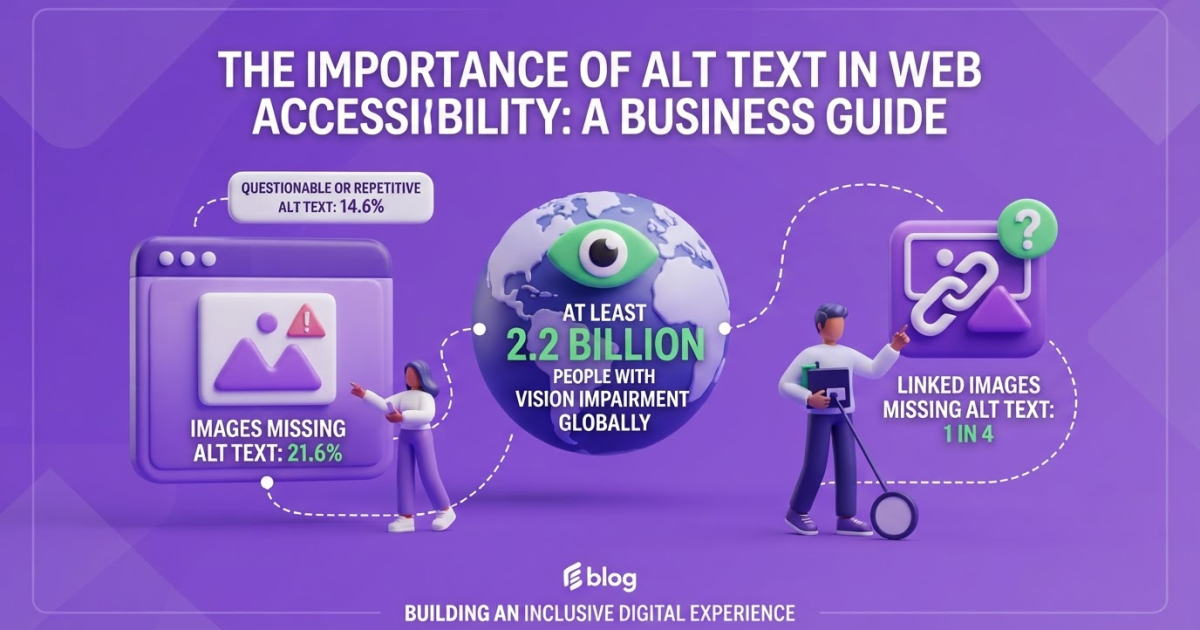
An alt tag generator creates descriptive alternative text for images and can speed up repetitive work, but you should give every result at least one quick human review for accuracy, context, and accessibility. Adjust the wording based on whether the image is informative, decorative, linked, or complex, since one generic description will not fit all 4 image types.
Writing useful alt text often gets pushed behind publishing the page: you upload the image, move on, and later discover nobody recorded what it shows or does. I’ve seen this happen in content teams where accessibility work becomes a rushed cleanup job, especially when dozens of product images land at once. The gap is widespread: WebAIM found that 21.6% of images on the top 1,000,000 home pages had missing alternative text in its 2024 analysis. This guide shows you how to identify an image’s purpose, generate a draft with an alt tag generator, edit it for context, handle decorative and linked images, avoid keyword stuffing, and create a repeatable review workflow.
| Point | Details |
|---|---|
| Identify Image Purpose | Decide whether the image is informative, decorative, functional, or complex before generating its alt text. |
| Describe Relevant Meaning | Explain the image’s role on the page rather than listing every visible detail, and aim for about 1 concise sentence. |
| Review Generated Text | Check every AI-generated alt tag for factual accuracy, page context, and unnecessary keywords before publishing. |
| Use Empty Alt | Mark decorative images with an empty alt attribute, written as alt="", so screen readers can skip them. |
| Audit Image Libraries | Review your image library at least once every 30 days to find missing, repetitive, or misleading alt text. |
What an Alt Tag Generator Actually Does
When we review image-heavy websites, the same confusion appears repeatedly: people treat the filename, the visible caption, and the alt tag as interchangeable. They are not.
| Term | What it means |
|---|---|
| Alt attribute | The HTML attribute, such as alt="Red hiking backpack", attached to an image element. |
| Alt text | The human-readable text value inside that attribute. |
| Image filename | The file’s name, such as red-hiking-backpack.jpg, which does not replace an alt attribute. |
An alt tag generator analyzes an image and proposes a concise text alternative. It can identify a backpack, a person holding a coffee cup, or a chart, which saves time when you have hundreds of uploads. It cannot know every page-specific detail, though. A product image may need its color and model name; the same image in an editorial story may need to describe the person’s action instead.
Pro Tip: Pro Tip: Treat the page’s surrounding copy as part of the input. The same image may need different alt text on a product page, an editorial article, and a navigation card.
Before accepting generated text, classify the image:
- Informative: conveys information, so describe the useful content.
- Decorative: adds visual styling only, so use an empty
alt="", not “decorative image.” - Functional: acts as a link or button, so describe the destination or action, such as “Open account settings.”
- Complex: presents substantial information, such as a graph. Use short alt text to identify it and provide the detail in nearby copy or a data table.
This is not just an SEO preference. WCAG 2.2 Success Criterion 1.1.1 makes text alternatives a Level A requirement, with specified exceptions. Generated text can support that workflow, but a human still needs to check whether it conveys the image’s purpose.
Search engines may use alt text, alongside computer vision and page content, to understand an image. Google’s guidance also warns against stuffing keywords into it. Write for the person who cannot see the image first; SEO context follows from an accurate description, not a repeated target phrase.
Next, you need a practical way to review and edit the generator’s suggestions before publishing them.
How to Use an Alt Tag Generator in Five Steps
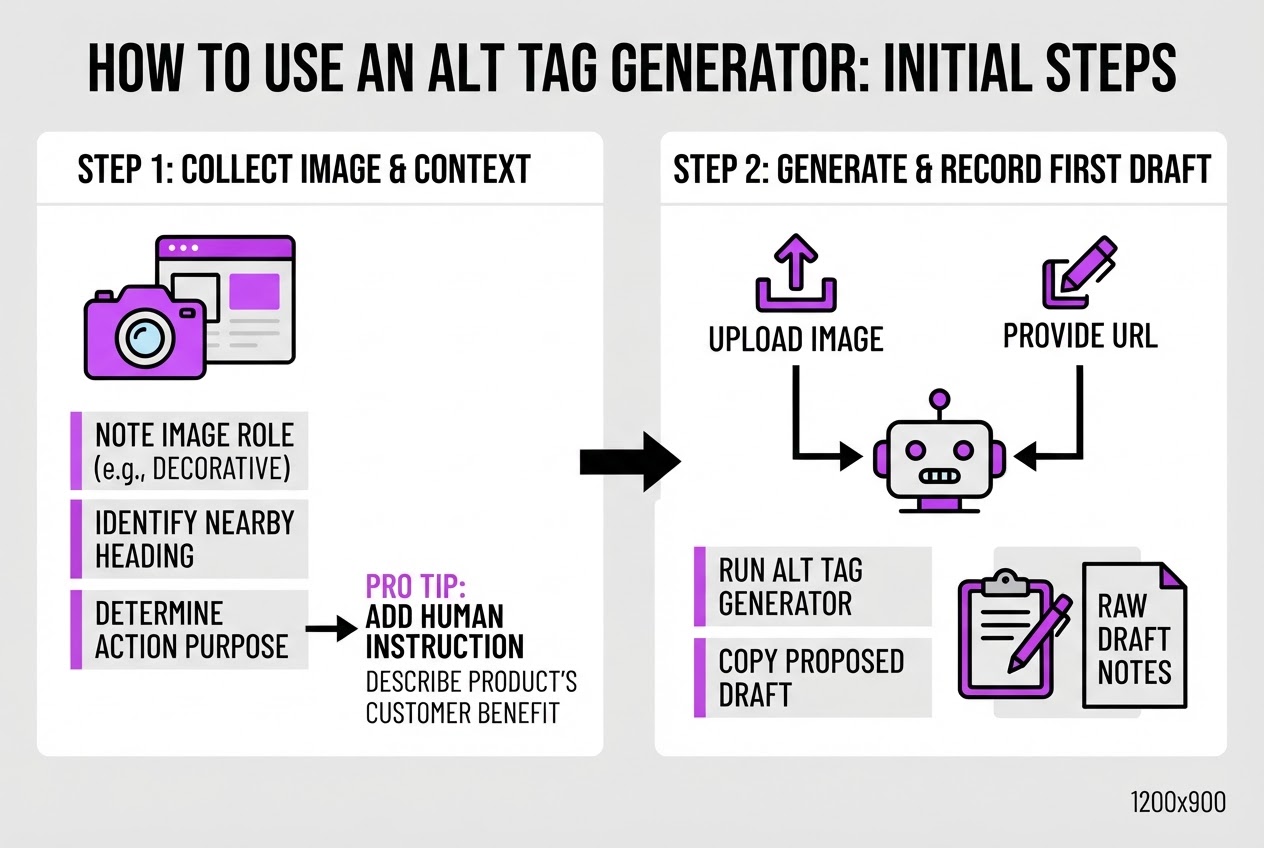
- Collect the image and its page context. Save the image, then note its role, the nearby heading, and the action you want users to take. A photo beside “Choose your finish” needs different alt text from the same photo in a gallery. I also check whether the image is decorative, informative, or part of a link before opening an alt text generator guide.
Pro Tip: Pro Tip: Add a one-line human instruction before generation—such as “describe what this product helps the customer do”—when the image’s business purpose matters more than its appearance.
-
Generate and record the first draft. Upload the image or provide its URL, add the page context, and run the alt tag generator. Copy the proposed wording into your content notes before editing it. Keeping the raw draft helps you spot what the tool repeatedly gets wrong, especially with brand names, chart labels, and people who are not clearly identifiable.
-
Cut what does not belong. Remove visual details that do not help someone understand the page, along with invented facts, sales language, and repeated words. “Premium smiling female entrepreneur in a vibrant modern office” becomes “Three employees reviewing a document around a table.” Do not add a person’s job title, emotion, or location unless the page confirms it.
-
Review the wording against five checks: accuracy, relevance, specificity, readability, and page-context fit. Keep the useful detail, but do not turn alt text into a caption or keyword list. For example:
- Product photo:
alt="red insulated water bottle on a desk"instead ofalt="Buy our premium red water bottle today". - Team photo:
alt="TryRoki team meeting around a conference table"instead ofalt="happy diverse successful startup team smiling". - Chart:
alt="Line chart showing organic visits rising from 1,200 to 3,400 between January and June". Put the complete data in nearby text or a table, as the W3C recommends for complex images. - Linked image:
alt="View the 2026 pricing plans", notalt="pricing screenshot". For a linked image, alt text should communicate the destination or action, since the image is doing the work of the link label.
- Product photo:
-
Publish, test, and document the decision. Add the final
altattribute in your CMS or HTML, then open the rendered page and test the image with a screen reader or accessibility checker. Check that the text is not duplicated by a visible caption and that a linked image still makes sense without surrounding visuals. Record the final wording, image role, and reason for anyalt=""choice in your content notes so the next audit does not restart the argument.
This hands-on review keeps the generator useful without allowing it to make the accessibility decision for you.
Choosing the Right Output for Every Image Type
The image’s job determines the output, not the image file itself. I have seen teams run every asset through an alt tag generator, then publish descriptions that sound tidy but tell screen-reader users almost nothing useful. Use this comparison before you accept a generated suggestion:
| Image scenario | What the alt text should do | Typical result |
|---|---|---|
| Informative image | Describe the important subject, setting, or message | alt="Chef preparing tomato soup in a restaurant kitchen" |
| Decorative visual | Add no information that users need | alt="" |
| Functional icon | State the action, such as search, download, or close | alt="Search" |
| Linked thumbnail | Communicate the destination or purpose of the link | alt="Read the guide to accessible product pages" |
| Complex chart or infographic | Identify the visual, then point to complete details elsewhere | alt="2025 quarterly revenue by region" plus a data table |
For decorative borders, background flourishes, and repeated shapes, an empty attribute is correct. The W3C decision tree recommends alt="" for purely decorative images, which prevents assistive technology from announcing noise. Do not use “decorative image” as the text. That still interrupts the page without helping anyone.
A linked image needs different thinking. Describe where the click goes or what it does, rather than listing colors and objects in the picture. A thumbnail showing a laptop might need alt="Compare laptops under $1,000", not alt="Silver laptop on a desk". This matters for SEO too because Google can use linked image alt text as anchor text. I cover the practical generation workflow in this free alt text generator guide.
Pro Tip: Pro Tip: Ask “What would the user lose if this image disappeared?” The answer usually reveals whether the alt text should describe content, communicate an action, or stay empty.
Edge cases cause most cleanup work. Product photography should identify the product and relevant variant, such as “navy waterproof hiking jacket, front view.” An author headshot usually needs the person’s name and role. A logo needs the organization name, unless nearby text already provides it. A screenshot should summarize the task or result shown, not reproduce every label. Hero images need alt text only when they add meaning beyond the headline.
For a graph or infographic, keep the alt text short and put the numbers in nearby prose, a table, or an equivalent format, as W3C guidance for complex images explains. That extra work feels tedious, but a one-line AI description cannot replace the underlying data. Next, you can use these rules to audit generated text before it reaches your page.

Alt Tag Generator Mistakes That Reduce Quality
The quickest way to make an alt tag generator look careless is to publish every suggestion without checking it. In our own content reviews, the worst outputs are rarely dramatic. They are usually vague, repetitive, or confidently wrong.
WebAIM found that 14.6% of images with alternative text contained questionable or repetitive text in its 2024 analysis. Watch for these common mistakes:
- Using empty descriptions for meaningful images: “image,” “photo,” “graphic,” “picture,” and filenames such as
IMG_4821.jpgtell a screen-reader user almost nothing. Replace them with the image’s subject and purpose. - Copying the heading or caption: If the page already says “Three steps to reset your password,” repeating that sentence in alt text creates redundant output. Describe the visual information the surrounding text does not provide.
- Stuffing target keywords: “blue running shoes men’s running shoes buy running shoes” sounds unnatural and can make the page less useful. Google also warns against keyword stuffing in image alt text, so write for the person who cannot see the image.
- Inventing details: Generators may guess a person’s emotion, a product specification, a number on a chart, or a medical condition. Treat those guesses as unverified, not as polished copy.
- Describing decoration: A background flourish, divider, or purely decorative icon normally needs
alt="", not a forced description.
Before publishing generated text, run this quality check:
- Confirm every informative image has an
altattribute. WebAIM reported that 21.6% of images were missing alternative text. - Use
alt=""for decorative images, rather than omitting the attribute. - For a linked image, describe the destination or action, not just what the picture looks like.
- Check images containing embedded text. Include the essential wording in the alt text, or provide it as nearby HTML text.
- Send faces, numbers, medical content, legal claims, and brand-specific terminology to a human reviewer. These are the areas where a plausible mistake can create a real problem.
A practical alt text generator workflow can speed up drafting, but it cannot decide which detail carries legal, medical, or commercial importance. After this quality check, you can refine the final descriptions for consistency across the rest of the site.
Building an Alt Text Workflow That Scales
An alt text workflow only works when someone owns the decision before an image reaches production. I assign the writer to document the image’s purpose, the designer to flag visual or brand constraints, the developer to preserve the field in the CMS, and the editor to approve exceptions. If everyone owns it, nobody does, and missing text quietly survives another redesign.
Use a simple five-milestone process:
- Inventory: List new and existing images, their page URLs, format, owner, and current alt value. A shared spreadsheet works at first, although a centralized digital asset management system becomes less frustrating when several teams reuse files.
- Classify: Mark each image as decorative, informative, functional, or complex. Decorative images should use an empty
alt="", while a button image needs wording that explains the action or destination, as the W3C decision tree recommends. - Draft: Use an alt text generator guide to produce a first version from the image and its page context. AI saves time on product catalogs and routine editorial images, but it often misses the reason an image exists, especially when a chart or ambiguous product photo carries important meaning.
- Review: Send functional, complex, branded, and legally sensitive images to a human reviewer. For a chart, keep the alt text brief and place the actual data in nearby prose or a table, following the W3C guidance for complex images.
- Publish and audit: Store the approved wording in the CMS field, content brief, or spreadsheet so a later crop, translation, or template change does not erase the decision.
Set two blunt quality checks: zero unexplained missing alt attributes and manual review of every functional or complex image. This matters because WebAIM found missing alternative text on 21.6% of images across its 2024 sample, with linked images creating a particularly common failure.
Review the inventory monthly for active publishing teams and quarterly for stable libraries. Tie the audit to article production, image SEO checks, and content refreshes, not to a separate accessibility project nobody remembers. The next step is measuring whether each description serves readers as well as search engines.
My honest take on alt tag generators
I have learned that an alt tag generator is most useful as a consistency and speed layer, not as a substitute for editorial judgment. At TryRoki, I would rather give a team a solid first draft in seconds than pretend a model understands every page as well as the person publishing it.
Here is the contrarian part: you should not generate alt text for every image automatically. A decorative divider, background texture, or purely ornamental icon will often be better served by alt="" than by a noisy sentence that makes screen-reader users work harder. On the other hand, a chart, product comparison, or image containing a claim may need supporting detail in the surrounding copy, not just a short label.
The image’s role on the page matters more than what the pixels show. A model may identify a person or object correctly but miss whether that person is the subject, a customer example, or irrelevant decoration. That mistake is especially frustrating when teams publish at speed and assume the generated text is finished.
I recommend automating repetitive drafts, then reviewing intent, accuracy, links, charts, people, and claims by hand. Responsible image metadata belongs in the wider content operation: publish faster, but never push accessibility into the “we’ll fix it later” pile.
— Daniel/Aleksandra
Make Alt Text Part of Your Content Workflow
Use the five-step alt tag process in this guide before you add another tool. It catches the mistakes that automation misses, especially when an image carries product details, context, or accessibility requirements. A generated alt tag can sound fine and still describe the wrong thing, so keep a human review before publication.
When your team is ready to connect that work with the rest of your publishing routine, TryRoki’s website content workflow can help reduce the repeated drafting and formatting that slows small teams down. Roki AI also organizes recurring SEO tasks, including weekly opportunities to improve your visibility in Google and AI search. It does not remove editorial responsibility, and it should not. Think of it as operational support for tying content production, optimization, and ongoing growth work together without managing every task from a blank document.
Frequently Asked Questions
Describe the image’s meaningful purpose in one concise phrase or sentence, usually under 15 words. Mention visible details only when they help someone understand the page or complete an action, such as “Red running shoes beside a trail map.”
No. Alt text provides the text alternative when someone cannot perceive the image, while a title attribute offers optional supplemental information that may appear after a hover. Treat the alt attribute as the required accessibility decision, and do not replace it with a title containing 10 extra words.
There is no universal character limit, but a short description of about 125 characters or fewer is often easier to understand than a paragraph. Put the essential subject and purpose first, then move detailed explanations for charts or diagrams into nearby text.
Useful alt text can help search engines interpret an image, but accessibility should guide the wording before SEO does. Do not force 1 keyword into an image description when it does not match what the image shows, and avoid repeating the surrounding caption.
AI can produce a useful first draft in seconds, but you still need to review every result against the image and page context. Check linked images, charts, people, and numbers manually because 1 incorrect detail can change the meaning of the page.
Written by Daniel/Aleksandra.
Recommended reads
- Free Seo Tools
- Ai Seo Agent
- Seo For Photographers 5 Tools And Real Costs
- Free Googlebot Tester Crawler Simulator
Sources
- Understanding Success Criterion 1.1.1: Non-text Content
- An alt Decision Tree | Web Accessibility Initiative (WAI) | W3C
- Easy Checks – A First Review of Web Accessibility | Web Accessibility Initiative (WAI) | W3C
- Image SEO Best Practices | Google Search Central | Google for Developers
- SEO Link Best Practices for Google | Google Search Central
- WebAIM: The WebAIM Million - The 2024 report on the accessibility of the top 1,000,000 home pages
- World report on vision
- Cocoon