Daniel D.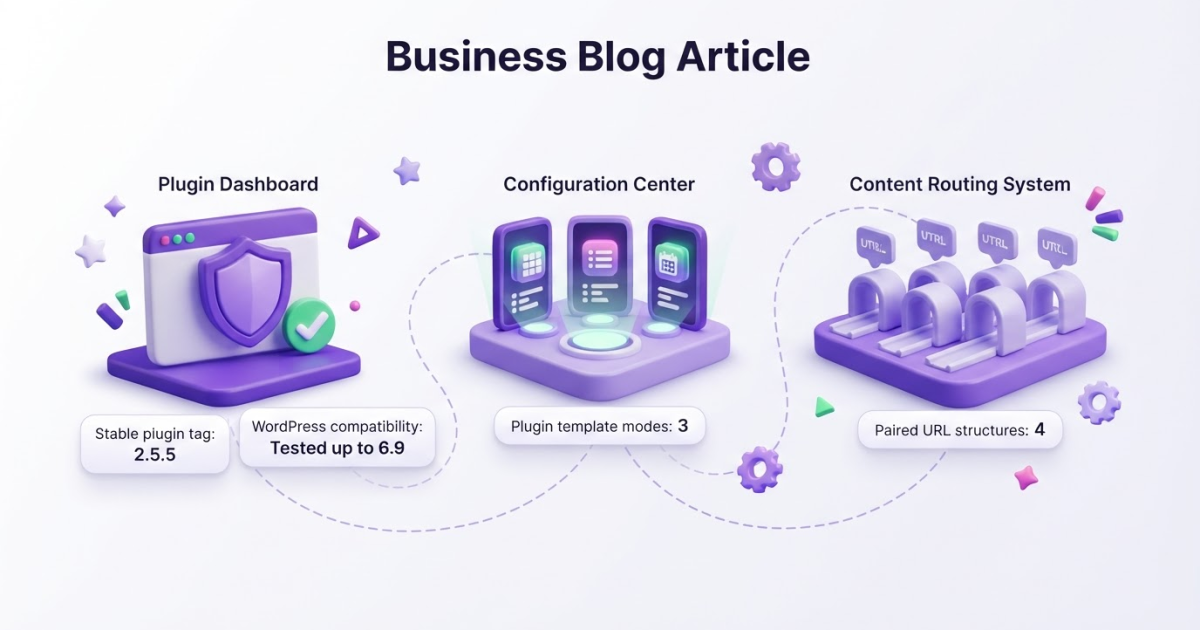
The AMP WordPress Plugin creates and validates AMP versions of your pages, but AMP alone is not an SEO ranking boost. Choose from its 3 template modes, configure and test the plugin for compatibility, and consider a fast responsive WordPress setup instead if AMP creates more maintenance than value.
Installing an AMP WordPress plugin takes minutes; cleaning up a poor setup can take days. If you choose the wrong template mode or miss a validation error, you can end up with broken layouts, confusing URL pairs, and extra maintenance. AMP itself is a technical format, not a magic speed switch: a carefully optimized WordPress site can be fast without it. Worse, validation errors can keep AMP pages out of the Google AMP Cache and prevent distribution through third-party platforms. I’ll walk you through installation, Standard, Transitional, and Reader modes, URL structures, compatibility checks, validation, mobile behavior, and the criteria I’d use before deploying AMP on a production site.
| Point | Details |
|---|---|
| AMP Is Not Ranking | AMP can support faster pages, but activating it does not directly improve your Google rankings. |
| Pick One Mode | The plugin offers 3 template modes: Standard, Transitional, and Reader. |
| Standard Uses One | Standard mode serves 1 AMP-first version instead of maintaining separate AMP and non-AMP URLs. |
| Validate Before Launch | Validation errors can block discovery and distribution through third-party platforms and the Google AMP Cache. |
| Test Real Templates | Check posts, pages, menus, forms, media, tracking, and conversion paths, not only the homepage, before launch. |
What the AMP WordPress Plugin Actually Changes
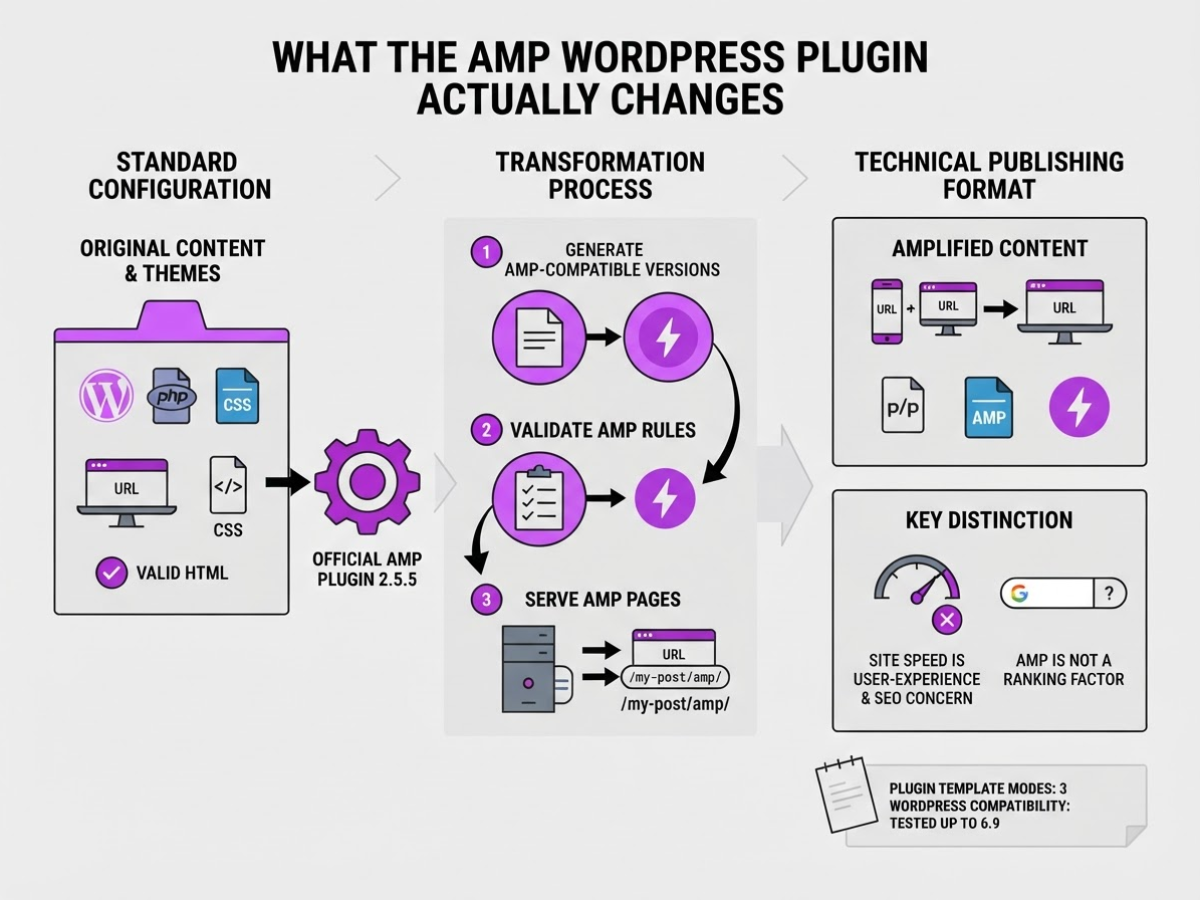
When I explain the official AMP Plugin for WordPress to site owners, I start with what it actually does: it helps generate, serve, and validate AMP-compatible versions of WordPress content. It does not simply flip a “faster site” switch. It changes how templates, scripts, styles, URLs, and validation rules work together.
AMP is a technical publishing format. Site speed is a user-experience and SEO concern. AMP itself is not a ranking factor, although website performance can affect SEO outcomes. That distinction matters because installing the plugin does not automatically improve rankings. A poorly configured AMP page can still load badly, frustrate visitors, or lose important functionality.
The plugin offers three template modes:
| Mode | Practical meaning |
|---|---|
| Standard | One AMP-powered version of the site, with no separate non-AMP URLs |
| Transitional | AMP and non-AMP versions use the same WordPress theme templates |
| Reader | AMP pages use separate templates when the theme or plugins are difficult to adapt |
The mode affects maintenance. Standard is the cleanest when your theme, forms, analytics, menus, and commerce features already work with AMP. Transitional keeps paired versions, while Reader can preserve a usable AMP experience when the main theme contains incompatible code. The plugin also supports several paired URL structures, including ?amp=1 and /amp/, so URL handling becomes part of your testing plan.
AMP pages face stricter rules than ordinary WordPress pages. A valid AMP document needs required pieces such as a canonical link, viewport metadata, boilerplate CSS, the AMP runtime script, and a body element. External stylesheets are not allowed, and custom CSS generally belongs in one inline amp-custom block. That can break a carefully tuned design or a plugin that assumes normal WordPress output.
Pro Tip: Treat AMP as a delivery and compatibility decision, not as a badge to add after every WordPress installation.
Before you publish a WordPress site, check compatibility, maintenance effort, and business-critical features such as checkout, lead forms, and tracking. The next section compares those template modes in practical selection terms.
Which AMP Template Mode Fits Your WordPress Site?
The right mode depends less on your traffic and more on how much of your WordPress site you can safely adapt. I have seen owners choose the leanest option, then discover that a booking form, product filter, or membership screen breaks on mobile. The mode decides how much code you maintain and whether visitors see one URL set or two.
The official AMP Plugin documentation describes three template modes:
| Mode | Best fit | Theme and URL setup | Main trade-off |
|---|---|---|---|
| Standard | AMP-first blogs, publishers, and simple business sites | Your entire site runs through AMP templates and keeps one site version | You must make the theme and plugins work within AMP rules |
| Transitional | Sites with a mostly compatible theme and some technical support | AMP and non-AMP pages use the same theme templates, with paired URLs | You maintain two page versions and need to test both |
| Reader | Older, custom, or plugin-heavy sites | AMP pages use separate AMP templates from the regular site | The AMP version can look and behave differently, and it needs separate upkeep |
Choose Standard when you can operate the whole site through AMP templates. It is the cleanest arrangement because you do not maintain a separate AMP copy. That simplicity comes with a hard boundary: incompatible JavaScript, external CSS, or checkout behavior can turn the conversion into a repair project.
Transitional is the sensible middle ground for a site that needs its regular version but has a theme that can support AMP output. It uses the same theme templates for both versions, although the AMP and non-AMP pages remain paired. This is often easier than a full rebuild, but a template change can create problems in both versions at once.
Use Reader when your active theme or essential plugins are difficult to adapt. Its separate AMP templates give you a compatibility fallback, yet they also create the most maintenance. A design update made to the desktop theme will not automatically fix the Reader templates.
The onboarding wizard recommends a mode based on compatibility and your technical ability. Treat that recommendation as a starting point, not a verdict. Review your real user journeys, then use a step-by-step WordPress publishing checklist before launch.
Pro Tip: If your checkout, forms, analytics, or membership flows are essential, test those paths before choosing a mode—not after the homepage looks correct.
Use this quick decision tree:
- If the whole site can run through AMP templates, choose Standard.
- If you need separate mobile behavior but your current theme is adaptable, choose Transitional.
- If the theme or plugins resist adaptation, choose Reader.
Next, check how each mode changes URLs, redirects, and the testing work your team must repeat.
How to Install and Configure the AMP WordPress Plugin
Before you touch the AMP WordPress plugin, create a rollback point. I always take a full database and file backup, then run the first setup on staging rather than on a live shop or lead-generation site. Also inventory your active theme, SEO plugin, caching layer, analytics tags, forms, memberships, and ecommerce features. These are the places where AMP changes usually expose awkward dependencies. If you are publishing a new site as well, this WordPress publishing guide is useful for checking the wider launch process.
-
Install the plugin. In WordPress, open Plugins > Add New Plugin, search for AMP Plugin for WordPress, verify the publisher, and select Install Now, then Activate. The onboarding wizard opens after activation. It recommends a template mode based on your site’s compatibility and your technical comfort, but treat that recommendation as a starting point, not a decision.
-
Choose a template mode. Standard creates one AMP-first version of the site and suits a theme that is already AMP-compatible. Transitional serves AMP and non-AMP versions through the same theme templates. Reader uses separate templates, so it is usually the least disruptive option when your theme or a plugin produces compatibility errors. The plugin provides these three modes and explains its compatibility findings during onboarding.
-
Review the recommendation before confirming it. Open the compatibility details and note every flagged theme or plugin. A contact form, checkout widget, slider, or ad script can look fine on a blog post while failing on a product page. Do not enable the whole site until you have tested those exceptions.
Pro Tip: Configure and test one representative post, one page, and one conversion-focused URL before applying the chosen mode to the entire site.
-
Inspect the settings and URL behavior. Reopen the wizard or go to AMP > Settings to review template behavior, supported content types, validation warnings, and publishing controls. In Transitional and Reader modes, test the paired URL structure before launch. The plugin supports query parameters such as
?amp=1,/amp/paths, and legacy paired formats. Standard does not create a second URL. Mobile redirection is available only in Transitional and Reader modes, so test it on a real phone without caching an old redirect. -
Run the launch checklist. Compare canonical links, titles, descriptions, viewport metadata, navigation, images, structured content, analytics events, forms, login flows, carts, and checkout actions between versions. Check that your cache excludes or correctly varies AMP URLs, and confirm that your robots.txt setup does not block the paired paths. Publish only after representative URLs validate cleanly and conversion tracking records the same actions as the original pages.
Once staging passes those checks, validate the pages that matter most before sending all eligible content through the AMP workflow.

Testing AMP Pages Without Breaking the Site
Start with a test matrix, not a quick glance at one blog post. I use five rows: homepage, individual blog post, category or archive page, landing page, and every revenue-driving template, such as a pricing page, product page, checkout step, or lead form. For each row, record the AMP URL, canonical URL, template mode, and pass or fail result.
Run the checks in this order:
- First pass: Open each page on a real phone and a desktop browser. Check the header, menus, internal links, images, video or social embeds, forms, consent banner, analytics events, and any sticky navigation. A page that loads quickly but hides the newsletter form is not a successful implementation.
- Same day: Use WordPress previews and the AMP plugin’s validation workflow while editing representative pages. Then inspect the rendered HTML and browser console. Look for missing scripts, blocked resources, layout shifts, JavaScript errors, and links that still point to an unintended AMP or non-AMP version.
- Before launch: Test the URLs with search-engine inspection tools and a crawler or Googlebot tester. Confirm that the crawler can see the main content, canonical link, structured data, images, and navigation. Do not rely on your logged-in preview, because caching and consent tools often behave differently for anonymous visitors.
- After release: Compare page speed, organic impressions, engaged sessions, form submissions, purchases, and revenue with the same period before rollout. Keep a baseline for at least 14 days if traffic allows. AMP may improve a page, do nothing, or expose a theme problem that was already there.
CSS causes frequent surprises. AMP pages generally allow CSS only inline, usually inside one style amp-custom element, and external stylesheets are not allowed. That restriction can strip a carefully tuned desktop layout, so inspect spacing, font loading, buttons, and responsive breakpoints instead of assuming the theme carried over intact. (AMP’s CSS documentation explains the limitation.)
Fix errors in this order: content changes, removed functionality, broken links, then canonical or paired-URL mistakes. Cosmetic warnings can wait; unresolved validation errors cannot. Pages with validation errors may be excluded from the Google AMP Cache and third-party distribution, turning a small markup problem into a discovery and reach risk. (AMP’s validation guidance details that distribution risk.)
Once the matrix passes, use the before-and-after data to decide whether the AMP WordPress plugin deserves to remain in production.
Common AMP WordPress Plugin Mistakes to Avoid
I have seen more AMP launches go wrong because of assumptions than because of the plugin itself. The biggest mistake is installing it because someone says AMP is a direct Google ranking factor. The AMP project separates AMP activation from performance and ranking, so treat it as an implementation choice, not an automatic SEO upgrade.
Watch for these problems:
- Using Reader mode as a permanent shortcut. Reader mode can rescue a theme with incompatible plugins, but it uses separate templates. Your AMP page may lose the normal header, navigation, forms, product widgets, or brand details. I would use it as a deliberate compromise, not enable it and forget it.
- Ignoring paired URL architecture. Transitional and Reader setups can create separate AMP and non-AMP URLs. Check canonicals, redirects, sitemap entries, and internal links before launch. The official documentation explains the difference between one AMP-first version and paired URL structures. A stray
?amp=1link or redirect loop can create weeks of confusing reports. - Trusting visual similarity. A page can look identical while its form submission, analytics events, embedded video, JavaScript, or checkout flow fails. Test every conversion path on a real phone, including validation messages and thank-you pages.
- Treating AMP CSS like ordinary WordPress CSS. External stylesheets are not supported on AMP pages. Custom styles generally belong in the inline
amp-customblock, and careless additions can trigger validation errors or exceed CSS limits. - Skipping validation and crawl checks. Do not launch until you inspect representative posts, pages, archives, and templates for validation errors. Errors can stop pages from appearing in the Google AMP Cache or being distributed by third parties. Also confirm that robots rules, canonicals, and redirects allow crawlers to reach the intended version. A Googlebot crawler simulator can catch basic access problems, but it does not replace Search Console testing.
- Judging success by Lighthouse alone. Speed scores are useful diagnostics, not business results. Compare organic clicks, engaged sessions, leads, sales, and revenue against a baseline over at least four to eight weeks.
After these checks, you can judge whether AMP is helping the site rather than merely producing cleaner test scores.
My honest take on the AMP WordPress Plugin
I would not install the AMP WordPress Plugin on every site by default. That opinion goes against the usual advice, but a well-built responsive WordPress site is often the better long-term investment. Maintaining a second rendering path creates template checks, plugin compatibility problems, and another place for small layout or tracking errors to hide.
AMP makes more sense when you have a clear mobile performance or distribution problem, a compatible publishing model, and time to test continuously. The operating mode matters more than the installation itself. Standard can keep the architecture simpler for an AMP-first site, while Transitional and Reader can create paired URLs and extra QA work. That choice affects analytics, monetization, redirects, and editorial workflows, so I would not make it casually.
I would begin on staging, then test revenue-critical journeys such as subscription forms, ads, checkout, and newsletter signups. Compare real performance and conversion data before expanding the rollout. A faster page that loses signups is not a win.
At TryRoki, I also judge the content system around the site. AMP cannot fix weak topics, poor internal linking, or pages that fail to answer searchers. It can support a disciplined publishing operation, but it cannot replace technical SEO, useful content, or consistent measurement.
— Daniel
Turn a faster WordPress site into a stronger content system
AMP can fix a technical bottleneck, but it will not decide what to publish next or where your audience is already asking questions. I built TryRoki around that operational gap: once your WordPress setup is stable, it helps you plan and create website content on autopilot, then surfaces relevant Reddit conversations where a useful, non-spammy mention of your site may fit.
That workflow is not magic. You still need to review drafts, avoid forced Reddit promotion, and correct topics when your site has limited expertise. Each week, TryRoki provides 3–10 practical tasks, which is more useful than another dashboard full of vague recommendations. Explore the features for automated content and search opportunities, then decide whether they match the gaps you already see in your publishing process. AMP should support that work, not become a project isolated from it.
Frequently Asked Questions
AMP can still make sense for a WordPress site when it addresses a specific mobile performance, compatibility, or distribution problem, but it is not a requirement for every site. Before adopting it, compare mobile load times, conversions, and maintenance work over at least 30 days rather than assuming AMP will improve results.
No. Some themes and plugins need code changes before they work correctly, while Transitional mode reuses your existing templates and Reader mode provides separate templates for sites with major compatibility problems. Test at least 10 representative URLs, including posts, pages, archives, and landing pages, before switching modes on a live site.
It can, but you must test the full customer journey because JavaScript, payment steps, validation, and analytics events may behave differently on AMP pages. On staging, place at least 1 test order and submit every important form, then verify the cart, checkout, confirmation page, and conversion tracking.
Responsive design adjusts one existing page layout for different screen sizes, while AMP follows stricter technical rules and can create a paired version of the page depending on its mode. If your responsive site already passes mobile usability checks and loads quickly, adding AMP may create more maintenance than value, especially for a small team of 1 to 3 people.
Do not remove it immediately, but pause new rollouts and check whether the errors damage content, styling, canonical signals, navigation, or conversions across a sample of 20 URLs. Fix and retest those pages first; if maintenance takes more than 4 hours each month without a measurable gain, a well-optimized responsive setup may be the better choice.
Written by Daniel/Aleksandra.
Recommended reads
- How To Publish Wordpress Site A Step By Step Guide
- Free Googlebot Tester Crawler Simulator
- Robots Txt Wp Guide Mastering Wordpress Robots Txt File
- Optimizing Ai Content For Google S 2026 Algorithms
Sources
- Template Modes – AMP for WordPress
- Paired URL Structures – AMP for WordPress
- Introducing v2.0 of the official AMP Plugin for WordPress
- Mobile Redirection – AMP for WordPress
- AMP & CSS – AMP for WordPress
- AMP validation errors
- Validate AMP pages
- GitHub - ampproject/amp-wp: Enable AMP on your WordPress site, the WordPress way.
- FAQ – AMP for WordPress