Aleksandra D.

“Search or enter web address” refers to the browser’s address bar, which handles two jobs: searching for keywords and opening a specific URL. Type a phrase and press Enter to search, or enter the complete web address to go directly to a site. The right shortcut depends on your browser, and a missing protocol or mistyped address can cause errors.
Seeing “Search or enter web address” when you only want to reach a page can feel oddly unclear: should you type a website, a phrase, or both? I have watched people lose time here, especially when a misspelled site name sends them through search results instead of taking them straight to the page. The box handles both jobs because a browser can interpret your input as a search query or a URL, which MDN defines as the address of a unique resource on the internet. This guide shows how to distinguish searches from URLs, navigate directly, use keyboard shortcuts, handle browser differences, troubleshoot mistakes, and choose the right workflow for research or website management.
Contents
- What “Search or Enter Web Address” Means
- How to Search or Open a Website Step by Step
- Chrome, Firefox, and Edge: What Changes?
- Troubleshooting Address-Bar Problems
- Which Method Should You Use for Everyday Research?
- My honest take on search or enter web address
- Turn Search Intent Into Consistent SEO Actions
- Frequently Asked Questions
- Recommended reads
| Point | Details |
|---|---|
| One Address Bar | Chrome, Firefox, and Edge let you use one address bar for keyword searches and direct website navigation. |
| Search Versus URL | A search phrase returns results, while a complete URL attempts to load 1 specific web resource. |
| Use Keyboard Shortcuts | Press Ctrl + L on Windows or Command + L on Mac to focus Firefox’s address bar, then press Enter. |
| Check The Protocol | Under RFC 3986, a URL can contain 5 parts: scheme, authority, path, query, and fragment. |
| Fix Common Errors | Misspelled domains, missing protocols, spaces, and incorrect paths are 4 common reasons a web address fails. |
What “Search or Enter Web Address” Means
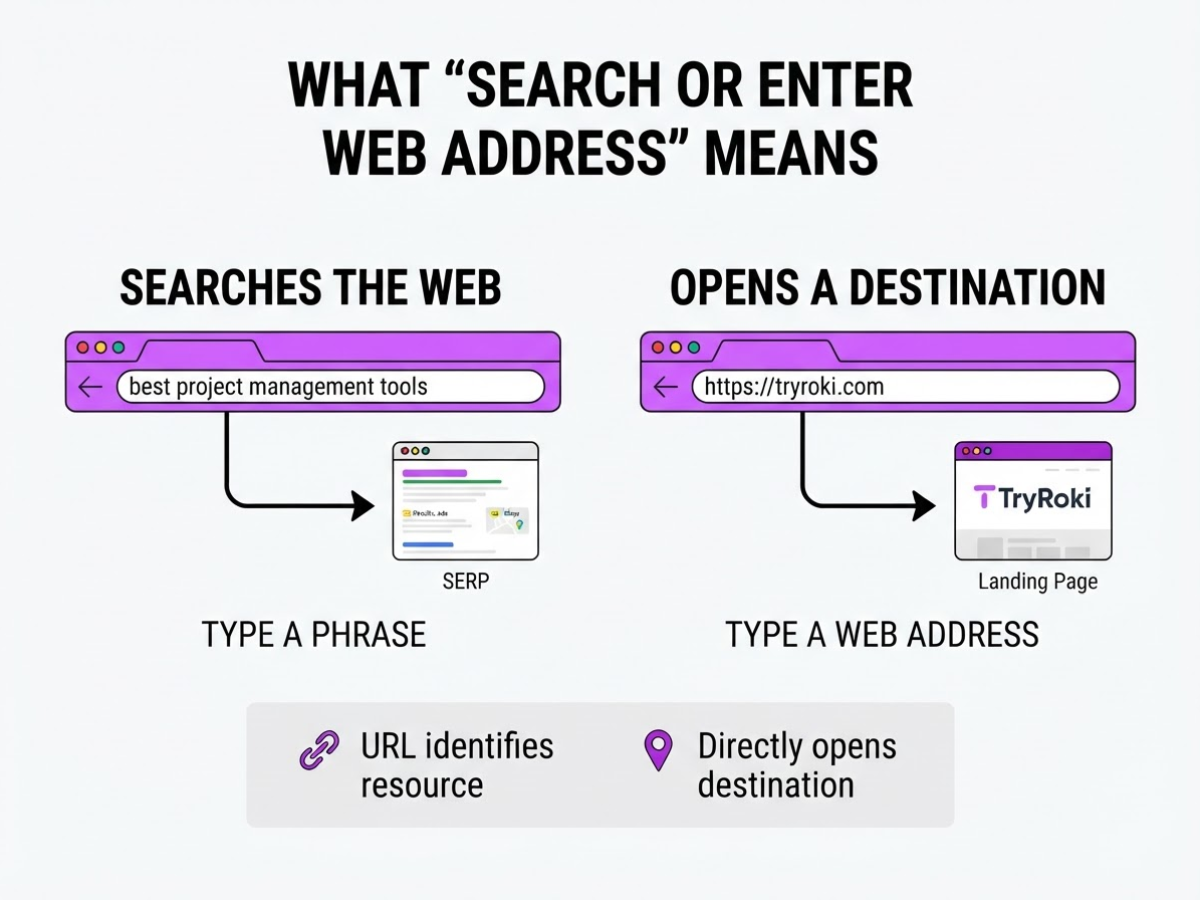
That prompt refers to your browser’s address bar, the single field at the top of Chrome, Firefox, Edge, and most other browsers. It handles two different jobs: it searches the web when you type a phrase, and it opens a destination when you type a web address. A URL identifies a specific resource on the internet, rather than merely describing a topic.
For example, type best project management tools and press Enter. Your browser sends that phrase to its selected search engine, which returns pages, ads, maps, or other results. Type https://tryroki.com instead, and the browser attempts to open TryRoki directly. You already know where you want to go, so searching first only adds an unnecessary step.
That distinction is simple, but browsers make it look less clear than it should. A typo in a URL can become a search, while a short site name can be interpreted as a destination. Your browser’s settings and selected search engine decide what happens when the text does not look like a complete address. Firefox and Edge, for example, support both direct addresses and keyword searches from the same bar.
Pro Tip: When teaching beginners, show the same phrase as both a search query and a URL-like string so the browser’s different response becomes obvious.
A web address also has parts. The standard URI structure divides it into five main components:
| Component | Example | What it tells the browser |
|---|---|---|
| Scheme | https | Which communication method to use |
| Authority | tryroki.com | Which server or domain to contact |
| Path | /blog | Which location on that site to request |
| Query | ?topic=seo | Extra instructions or filters |
| Fragment | #pricing | Which section of the page to show |
For instance, https://tryroki.com/blog?topic=seo#pricing contains all five. The bare address https://tryroki.com has a scheme and authority, but no visible path, query, or fragment. If you are selecting a domain name and hosting provider, these distinctions matter because the domain identifies the site, while paths and parameters organize what visitors access after they arrive.
Use this rule: search when you are discovering; enter a URL when you know the destination. If you need ideas, type a phrase. If you want a saved page, company site, or dashboard, enter its address directly. The next section explains what to do when you are unsure whether a string is a search or a web address.
How to Search or Open a Website Step by Step
I use the address bar dozens of times a day, and the same mistake still catches people: they type a website name, press Enter, and land on search results instead of the site. The fix is simple when you separate a search query from a complete web address.
-
Focus the address bar. Click the field at the top of your browser. On Windows or Linux, press Ctrl + L; on macOS, press Command + L. These shortcuts select the existing text, so you can replace it without first deleting the old address. Firefox documents both shortcuts, and Chrome uses the same address-bar workflow.
-
Enter keywords for information. If you want instructions, news, or an answer, type natural-language keywords such as
how to reset a routerorbest hiking trails near Denver. The browser sends that text to your default search engine. Chrome lets you search directly from the address bar by typing a query and pressing Enter. -
Enter the full address for a known website. Type the domain and, when needed, the path, such as
https://tryroki.com/blogorhttps://example.com/account. Includehttps://when you want to remove ambiguity. A full address tells the browser to navigate directly instead of treating your words as a search. For more examples, see this step-by-step guide to entering a web address.
Pro Tip: Paste a URL into the address bar instead of a page title; titles are usually interpreted as searches, while a complete domain and path signal direct navigation.
-
Check the suggestions before selecting one. Autocomplete can show search predictions, bookmarks, history, or previously visited pages. A suggestion is not automatically the destination you want. Read the domain and path rather than clicking the first line out of habit.
-
Press Enter and verify the result. After the page loads, check its title, domain, and address. Look for
https://and the browser’s security indicator, but do not treat the padlock as proof that every page is trustworthy. A convincing page can still belong to the wrong domain.
If a search page opens instead, press Ctrl + L or Command + L, type the complete URL, and press Enter again. If you only know the site name, open the search result carefully, confirm its domain, then copy the address for future use. That small check prevents a surprising number of wrong turns.
With this workflow in place, you can diagnose why a browser suggestion or redirect sends you somewhere unexpected.
Chrome, Firefox, and Edge: What Changes?
The label changes, but the job does not. Chrome calls its field the omnibox, while Firefox and Edge usually call it the address bar. In each browser, you can paste a complete URL such as https://example.com or enter ordinary words to run a search.
| Browser | Address field | Useful shortcut or feature | Where settings differ |
|---|---|---|---|
| Chrome | Omnibox | Press Ctrl + Return after a site name to add www. and .com; type a search engine name, then press Tab | Search engine controls sit under Search engine settings |
| Firefox | Address bar | Press Ctrl + L on Windows or Command + L on Mac, then enter a URL or search | Search shortcuts and one-click search engines appear in Firefox’s search settings |
| Edge | Address bar | Accepts URLs, search terms, and keyword searches | Address-bar search settings let you choose an OpenSearch-compatible provider |
Chrome’s Ctrl + Return shortcut is handy for a site such as example, but it is not a general fix for every domain. It adds www.example.com, so it fails when the website uses a different domain ending or does not support that hostname. Chrome documents this shortcut, along with the option to type a search engine’s keyword and press Tab before your query.
Firefox and Edge support similar keyword workflows, although the menus are placed differently and the available shortcuts depend on what you have configured. Edge can use any search engine that supports OpenSearch, while Firefox can show search icons, suggestions, bookmarks, and history as you type. Those suggestions save a few seconds, but they also make accidental searches more likely when a domain is unfamiliar.
Changing the default search engine changes what happens to words that are not recognized as a direct address. Google, Bing, DuckDuckGo, and other providers rank and format results differently, so two browsers can return different pages for the same phrase. If you need a refresher on the basic action, this guide explains how to use the address bar for search or URLs.
Pro Tip: If a browser keeps converting a known domain into a search, type the protocol and domain together, for example, https://example.com, to remove ambiguity.
Before entering a password, card number, or bank details, pause and read the visible domain. A familiar logo proves nothing. Attackers often use a lookalike spelling or a misleading subdomain, and the browser will still load it normally.
Once these browser differences make sense, you can troubleshoot incorrect searches and missing pages without guessing which field you should use.

Troubleshooting Address-Bar Problems
A failed address does not always mean the browser is broken. First, separate the domain from the page path. In example.com/products/shoes, example.com identifies the website, while /products/shoes identifies a location within it. One wrong letter in the domain can send you to a different site or a search page. A wrong path usually produces a 404 error, a blank page, or a redirect to the site’s homepage. A URL identifies a resource on the internet, so every part matters.
Spaces, punctuation, and missing components cause a surprising number of false alarms. Typing example com, adding a comma after the address, or leaving out part of a long path can make the browser treat your entry as search terms. If you enter only a company name, the address bar can search for it instead of opening its website. Invalid or outdated links can do the same after a page moves, while DNS failures, Wi-Fi problems, server downtime, or a blocked page can stop a correct address from loading.
Common mistakes include:
- Misspelling the domain, such as
paypa1.cominstead of the intended site. - Changing the page path, capitalization, or punctuation in a copied link.
- Omitting
https://when a strict or unusual website needs the complete address. - Continuing after an unexpected redirect, warning, or lookalike domain appears.
- Assuming one browser failure proves that the website is offline.
Use this recovery checklist in order:
- Press Ctrl + L on Windows or Command + L on Mac to refocus the address bar.
- Clear the entire entry, then type it again rather than editing one suspicious character.
- Verify the domain letter by letter, especially the ending such as
.comor.org. - Add
https://and retry the address. - Check the redirected domain before entering a password or payment details.
- Try another browser or device. If the page fails everywhere, the website, DNS, or network can be responsible. If it works elsewhere, inspect browser extensions, cached data, or settings.
- Search the official site name when the path is outdated, then navigate from its homepage.
This process will not unblock a site that your network or the owner has restricted, but it quickly separates an entry mistake from a wider outage. Next, you can compare the main browsers and their address-bar behavior.
Which Method Should You Use for Everyday Research?
I make the choice at the address bar based on one question: do I know exactly where I want to go? If I do, I enter the full URL or select a bookmark. That is faster for a trusted analytics tool, a company portal, product documentation, or a page I have already checked. It also avoids wasting time sorting through lookalike results.
If I know the subject but not the destination, I search instead. Use a phrase that describes the task, not a vague label such as hosting or shoes.
| Your situation | What to enter | Why it works |
|---|---|---|
| You know the page | https://example.com/docs/api | Opens the intended resource directly |
| You know the topic, not the source | best API monitoring tools for startups | Gives you several sources to compare |
| You need a specific answer | Chrome clear address bar suggestions | Adds intent and narrows the results |
| You are checking a company | site:example.com pricing annual plan | Limits research to that domain |
Search suggestions can save keystrokes, especially when you return to a familiar topic. I use them to spot common wording and finish a query quickly. I do not treat a suggestion as proof that the first result is safe or authoritative. Check the domain before entering credentials, downloading a file, or trusting a claim. A convincing title can still lead to an impersonation site or a weak source.
For website work, this habit becomes a research loop: search the questions customers actually ask, compare the pages that answer them, then publish something clearer or more useful. I use target keywords as a practical SEO guide when turning those questions into page topics, but I avoid forcing an awkward phrase into copy. Search behavior is only one small part of SEO and AI-search visibility. Helpful structure, accurate information, technical access, and evidence still matter.
That distinction becomes even more important when you investigate how people phrase problems in natural language. One controlled study with 139 participants found that a chatbot-style search interface increased the number of product attributes mentioned by 84% and natural-language formulations by 139%.1
Next, we can look at the browser-specific differences that affect this choice.
My honest take on search or enter web address
I’ve come to see the browser’s address bar as a small but revealing interface lesson. Most people do not separate “search” from “navigation” in technical terms. They type a phrase, a company name, or a full address into the same box and expect the browser to figure out what they mean. Combining both actions is convenient, even if the underlying distinction still matters.
Here’s the part I think teams underestimate: autocomplete is not always helpful. It can nudge someone toward a familiar-looking result before they check the actual domain. I’ve seen people click a convincing suggestion, enter account details, and only later notice that the address contained an extra word or a slightly different ending. Familiarity is not proof.
I teach customers and our own team to build one simple habit. Before pressing Enter, ask: am I searching, or am I navigating? If you are navigating, verify the destination and domain before acting. That extra second is more valuable than memorizing browser terminology.
This also shapes how I think about TryRoki. Useful visibility starts with real user intent, not with inserting a target keyword repeatedly. “Search or enter web address” describes what people see, but their next action depends on what they actually want to find, confirm, or reach. Keywords matter, but intent decides whether the result earns trust.
- What I expect: a clear distinction between search and navigation prevents avoidable mistakes.
- What I do not expect: it will not make autocomplete trustworthy or replace checking a domain before sharing sensitive information.
— Daniel/Aleksandra
Turn Search Intent Into Consistent SEO Actions
Understanding how people search or enter a web address is only the browser-level view. As a website owner, you also need to spot the questions people ask, publish useful answers, and stay visible across Google and AI search engines. The difficult part is keeping that work moving when customer issues and routine tasks take over.
That is why we built Roki AI’s weekly SEO task workflow. Each week, Roki gives you 3 to 10 practical tasks, including content ideas and relevant Reddit discussions where a thoughtful comment could mention your website. The suggestions still need your judgment, and a rushed Reddit reply can do more harm than good. But the workflow removes some of the blank-page work and keeps content activity from disappearing for months. See how Roki AI works if you want a lower-pressure way to keep publishing and researching.
Footnotes
Frequently Asked Questions
It means your browser’s address bar accepts 2 types of input: a keyword search or a direct web address. Entering “weather in London” usually opens search results, while entering a complete URL such as https://example.com attempts to load that page.
Click the address bar, type your question or keywords, and press Enter. In Firefox, press Ctrl + L on Windows or Linux, or Command + L on macOS, to focus the address bar first.
Your browser can treat the entry as a search when the domain is incomplete, misspelled, or missing a recognizable structure such as https://example.com. Check 3 things: the spelling, extra spaces, and whether you entered the full domain directly.
A URL identifies a specific internet resource, such as a homepage or article, while a search query describes information you want a search engine to find. A URL can contain 5 main parts: scheme, authority, path, query, and fragment.
Yes, major browsers let you change the default search engine, although the menu location varies by browser. Chrome also supports a keyword followed by Tab to use another configured search engine, but you must set that engine up first.
Written by Daniel/Aleksandra.
Recommended reads
- Search Or Type Url How To Use The Address Bar
- How To Enter A Web Address A Step By Step Guide
- Search Or Enter A Website Your Step By Step Guide
- Target Keywords A Practical Seo Guide
Sources
- Search the web in Chrome - Computer - Google Chrome Help
- Chrome keyboard shortcuts - Computer - Google Chrome Help
- Search with the Firefox address bar | Firefox Help
- Find what you need with Microsoft Search | Microsoft Support
- Change your default search engine in Microsoft Edge | Microsoft Support
- RFC 3986 - Uniform Resource Identifier (URI): Generic Syntax
- What is a URL? - Learn web development | MDN
- Starting Conversations with Search Engines -- Interfaces that Elicit Natural Language Queries
- AVM Cloud