Aleksandra D.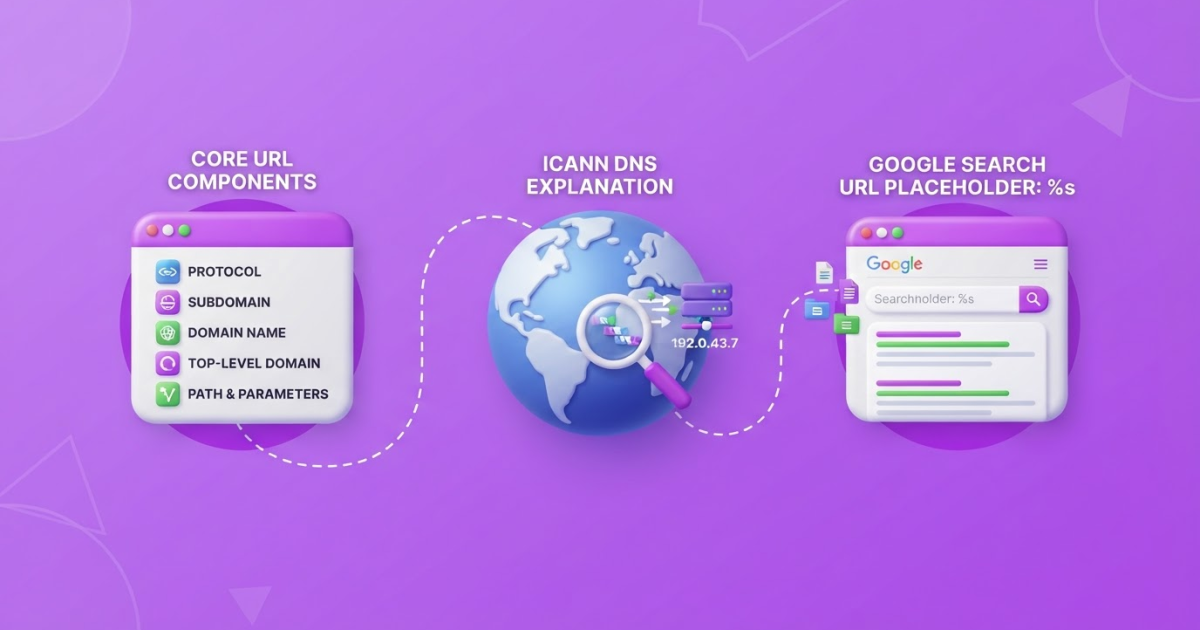
“Search or type URL” is your browser’s address bar: enter a complete web address to open a page, or enter words to run a search. Use Ctrl+L (or ⌘+L on Mac) to select it quickly, and check for missing characters such as https://, spaces, or misplaced punctuation when the browser searches instead of opening the page.
You type a web address into the browser, but the page refuses to open, or the results lead somewhere unexpected. The confusion usually comes from treating a URL and a search query as the same thing: a URL points to a specific web location, while a query asks your default search engine to find information. Chrome’s address bar, also called the omnibox, can search the web as well as accept website addresses. This guide explains how to enter a URL, read its parts, understand browser behavior, fix common typing mistakes, and choose what to do when an address does not open.
| Point | Details |
|---|---|
| Address Bar Basics | Your browser address bar can interpret either a website address or a search query. |
| URL Structure | A URL can contain up to 5 useful parts: scheme, authority, path, query, and fragment. |
| Correct Entry | Start with the domain, check every spelling detail, and use https:// when the full address is required. |
| Search Behavior | If the input is not recognized as a website address, your browser may send it to the default search engine. |
| Troubleshooting Checks | Check 4 common issues first: spelling, spaces, a missing protocol, and invalid symbols. |
What “Search or Type URL” Means
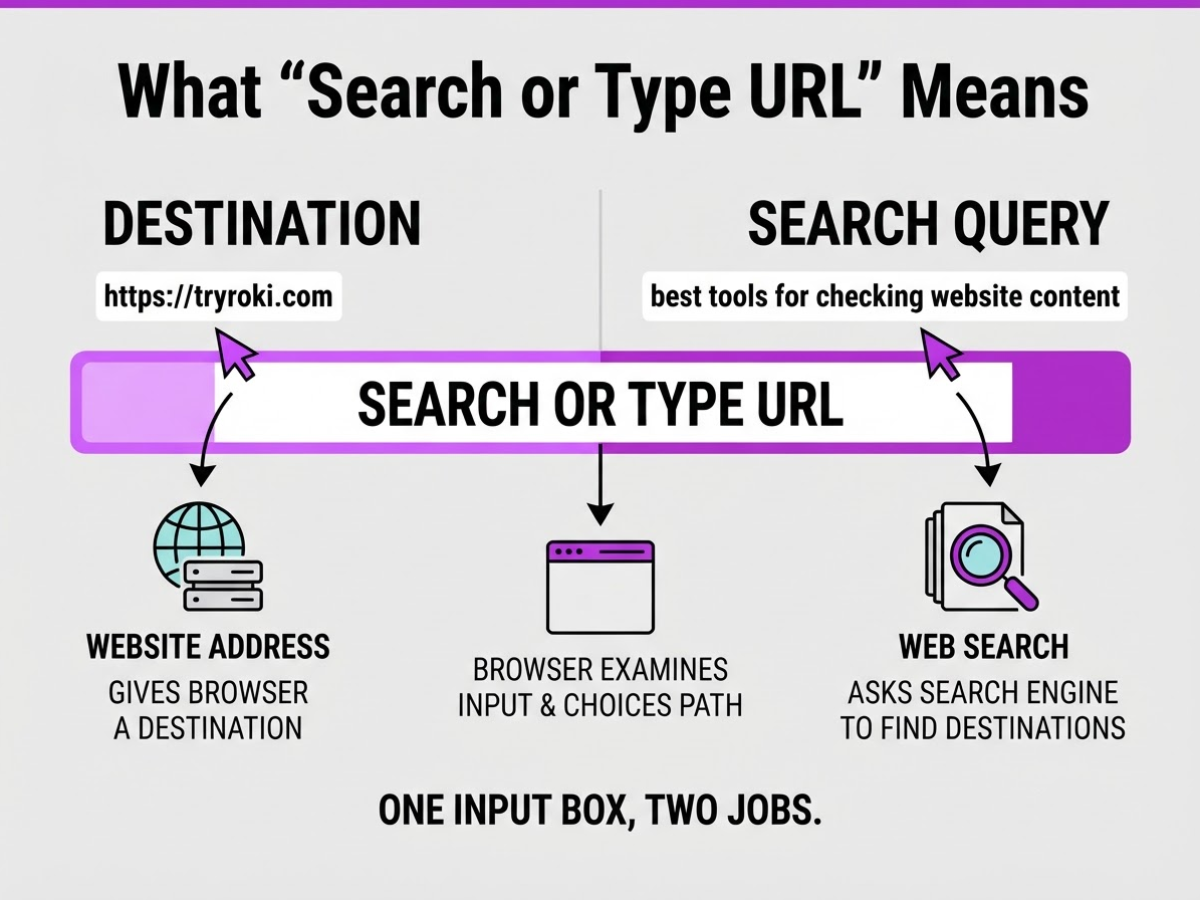
When you see “Search or type URL” in a browser, you are looking at one input box with two jobs. Browsers call it the address bar, URL bar, or, in Chrome, the omnibox. The names differ, but the control is basically the same. I see new users hesitate here because they assume they must choose a separate box for websites and searches.
Type https://tryroki.com, and you are giving the browser a destination. Type best tools for checking website content, and you are asking a search engine to find useful destinations for you. Chrome’s address bar supports both website addresses and web searches, using the search engine you have selected in its settings (Google explains how address-bar search works).
The browser makes that choice by examining what you entered, but the rules are not identical across Chrome, Edge, Firefox, Safari, and other browsers. A complete-looking web address usually goes directly to the stated site. Text that looks like a question usually goes to the default search engine. Firefox, for example, checks whether the input appears to be a website address before treating it as a search.
Here is the practical distinction:
| What you enter | What you usually mean | What the browser usually does |
|---|---|---|
https://tryroki.com | A specific website | Opens that address |
best AI writing tools | A question or topic | Sends it to a search engine |
tryroki.com/blog | A specific page on a site | Opens the domain and page path |
A domain name identifies the website, such as tryroki.com. The path comes after it, such as /blog, and identifies a page or resource within that site. A URL can also include a scheme, authority, path, query, and fragment, following the structure defined in RFC 3986: scheme://authority/path?query#fragment.
Pro Tip: When teaching beginners, show the domain separately from the rest of the URL before explaining query strings or fragments.
For a hands-on example of entering a destination correctly, see how to type a URL step by step. Next, the browser’s handling of incomplete or confusing entries deserves a closer look.
How to Type a URL and Open the Right Page
Typing a web address correctly takes a few seconds, but one misplaced dot can send you somewhere else. I have seen people enter a URL into the wrong field, accept an old autocomplete suggestion, and then wonder why the page never appears. Use this sequence instead:
-
Click or tap the address bar. On a computer, press
Ctrl + Lon Windows orCommand + Lon Mac to select everything quickly. On a phone, tap the bar at the top of the browser. Replace the existing text completely before you type, rather than adding your address after a previous search. -
Enter the domain carefully. Check every hyphen, dot, and ending, such as
.com,.org, or a country extension like.co.uk. For example, the main TryRoki address ishttps://tryroki.com. Do not turntry-roki.comintotryroki.com, or change.comto another extension and expect the same site. -
Use the full address when one is provided. If an instruction gives you
https://tryroki.com/blog/how-to-type-a-url-a-beginners-guide, paste or type the entire path, not onlytryroki.com. The/blog/...portion identifies a specific page. You can read more examples in this beginner’s guide to typing a URL.
Pro Tip: Paste the address into the bar instead of typing it manually when the URL contains a long path, query string, or tracking-free link.
-
Press Enter, Return, or Go. A successful entry loads the requested website or page. If you see a page of blue or sponsored results, the browser treated your words as a search query instead of opening the address. Chrome’s address bar, also called the omnibox, can search the web, so this behavior is normal when the input does not look like a complete URL.
-
Correct autocomplete mistakes. Do not blindly select the first suggestion. Keep typing the missing characters, use the arrow keys to highlight the wrong suggestion and delete it, or select the full address again with
Ctrl + LorCommand + L. Autocomplete often reflects your history, not the page you actually need.
If the page still fails, check spelling, connection, and whether the link includes an extra space. Next, you can compare direct URLs with searches when the address itself is uncertain.
Why the Browser Searches Instead of Opening the Site
The address bar makes a quick judgment about what you typed. If it looks like a domain, the browser tries to open it. If it looks like words for a topic, the browser sends those words to your default search engine instead.
| What you enter | What the browser usually sees | Likely result |
|---|---|---|
example.com | A recognizable domain | It attempts to open the site, often adding the scheme automatically. |
https://example.com | A complete URL | It opens the requested site directly. |
best cafes near me | A phrase containing spaces | It runs a web search. |
example com | Words separated by a space | It usually becomes a search query, not a domain. |
exampel.com | A possible but misspelled domain | It may try the address, fail, or search for the text. |
example.com, | A domain with accidental punctuation | The comma can make the input ambiguous or invalid. |
The scheme, such as https://, is not always required. Browsers often recognize example.com without it, but missing schemes, misspelled domains, spaces, unsupported characters, and stray punctuation all reduce that certainty. That is why typing a web address correctly matters more than people expect.
Pro Tip: If a short domain keeps triggering search, add https:// manually; this removes ambiguity for many browsers.
Firefox checks whether address-bar input resembles a website address before sending it to the default search engine. If Firefox decides it is not a website address, it searches the text instead. A search-results page therefore does not prove that the destination site is broken. It may simply show that the browser classified your input as a query. Mozilla explains this address-bar check.
Once the browser chooses “search,” your selected default engine handles the request. Google, Bing, DuckDuckGo, or another engine can produce different rankings, suggestions, and ads from the same words. Edge lets you select which engine handles address-bar searches, so check that setting before blaming the browser for unfamiliar results.
The distinction becomes easier to spot when you inspect the exact characters you entered, which is the next useful check.

What the Parts of a URL Do
A URL is easier to judge when you read it in pieces instead of treating it as one long string. Take this example:
https://shop.example.com/products/shoes?color=black&sort=price#size-guide
The main parts work like this:
| Part | Example | What it tells you |
|---|---|---|
| Scheme | https:// | Which connection method the browser should use. HTTPS encrypts the connection between your browser and the site. |
| Authority | shop.example.com | The server or site you are contacting. The domain, example.com, identifies the site, while shop is a subdomain. DNS lets people use this kind of text name instead of memorizing a numerical IP address, as ICANN explains. |
| Path | /products/shoes | The page or resource requested within that site. |
| Query | ?color=black&sort=price | Extra instructions or data sent to the server. |
| Fragment | #size-guide | A location or element within the page after it loads. |
The domain gets most of your attention when you check whether a link is legitimate. A familiar path does not make an unfamiliar domain safe. For example, example.com/login belongs to example.com, while example.com.attacker.net/login belongs to attacker.net, not example.com.
The path usually points to a specific article, product, file, or account page. Query parameters can filter results, sort a list, preserve a search term, or pass campaign details. A URL query appears after the path and can provide additional data to the server, so a long string after ? is not automatically suspicious. It can still expose private search terms or tracking information, though, which is why I avoid sharing copied URLs blindly.
A fragment starts with # and often jumps straight to a heading such as #size-guide. The browser processes the fragment and does not send it to the server. That makes fragments useful for navigation, but they cannot change what the server returns in the usual request.
Before you share a link, scan the domain, path, query, and fragment. If you want more practice reading addresses, this beginner’s guide to typing a URL covers the same checks from the browser’s address bar. Next, you can apply this habit when deciding whether a URL should open a site or trigger a search.
Useful Address-Bar Shortcuts and Common Mistakes
Use the address bar as a shortcut, not just a place to paste links. Type a complete address such as https://example.com, press Enter, and the browser should open that site directly. Type a question or a few keywords instead, and Chrome sends them to your selected search engine. You can also press Alt + Left Arrow to return to the previous page, or Ctrl + L to select the current address before replacing it.
Chrome does not lock you into Google. In desktop settings, you can change the search engine used by the address bar, although the setting is tucked away far enough to annoy first-time users. Open Settings, choose Search engine, select Change, and pick the provider you want.
Advanced users can also create site-search shortcuts. For example, you might assign yt to a YouTube search URL, then type yt cooking videos in the address bar. The saved URL uses %s as a placeholder, which Chrome replaces with your search terms. Google documents this site-search URL template and %s placeholder. It saves time, but setup errors are frustrating because one missing symbol can make the shortcut search the wrong place.
Before pressing Enter, check these common mistakes:
- Omitting one character from the domain, path, or file name.
- Adding spaces, which can change how the browser interprets the entry.
- Choosing
.orgwhen the intended site uses.com,.gov, or another extension. - Copying punctuation at the end of a sentence, such as a period or closing parenthesis.
- Trusting a look-alike domain that swaps letters, adds a hyphen, or uses an unfamiliar extension.
For banking, shopping, email, or work accounts, slow down for five seconds. Check the visible domain from left to right, confirm the connection uses HTTPS, and make sure the page context matches what you expected. A padlock alone does not prove that the site is legitimate. If the page asks for an unusual payment, password reset, or urgent code, close it and start again from a trusted bookmark or official search result.
If an address keeps redirecting, opens the wrong page, or behaves differently after copying, use this guide to searching, entering, and checking a website for deeper troubleshooting. These small checks remove most URL-entry errors before they become security or navigation problems. Next, you can apply the same judgment when a browser decides to search instead of opening a site.
My honest take on “search or type URL”
I have watched people use the “search or type URL” box for years, and the wording exposes a bigger problem than it seems. Many beginners can browse confidently, but they still confuse a destination, such as example.com, with a discovery tool, such as Google. That confusion creates avoidable mistakes, especially when a search result looks similar to the site they intended to visit.
My contrary view is that beginners do not need a technical lesson on every URL component before they can browse safely. They need one dependable habit: identify the domain, enter the address carefully, and confirm the page they reached. Queries and fragments matter later. Teaching those details too early often creates anxiety without improving judgment.
I see the same issue from the website owner’s side. A clear, memorable URL reduces hesitation. A confusing one sends visitors back to search results, where competitors are one click away. I have also seen teams overestimate automation and underestimate basic navigation. At TryRoki, I believe tools should support clear content and better visibility without hiding how the web works. Automation can help, but it cannot rescue a vague domain, a misleading page title, or a visitor who does not know where they landed.
— Daniel/Aleksandra
Turn Search Intent Into Consistent Website Growth
Searching or typing a URL is easy when someone already knows your website. The harder job is becoming one of the sites people discover before they know your address. As a company owner, I have seen teams waste weeks collecting SEO advice, then lose momentum because nobody knows what to do next.
TryRoki turns that work into a weekly routine. Roki AI can generate website content and surface relevant Reddit conversations where a useful, honest comment may make sense. You receive 3–10 tasks each week aimed at improving visibility in Google and AI search engines, rather than another disconnected checklist.
The setup still needs judgment. You should not publish every draft or force your website into every Reddit thread. But if you want structured guidance for consistent SEO execution, explore TryRoki and decide whether its workflow fits your team.
Frequently Asked Questions
It means Chrome’s address bar accepts both a website address and a search query in the same field. Enter a complete URL such as https://example.com to open a site directly, or type ordinary words and press Enter to send them to your selected search engine.
Click Chrome’s address bar, type your question or keywords, and press Enter. Chrome sends the request to your configured default search engine, so you can search with 1 click without opening a separate search page first.
Chrome may treat the entry as a search when it contains a spelling mistake, spaces, a missing domain extension, or an incomplete format. Type the full address, including https://, and check every part of the domain before pressing Enter.
Yes, browsers such as Chrome and Edge let you choose which search engine handles address-bar searches. In Chrome, open Settings, find the search engine section, and select 1 provider as your default, although the menu location can differ slightly by device or browser version.
Direct entry is generally safe, but verify the domain spelling and look for HTTPS before entering passwords, payment details, or other sensitive information. A padlock is not proof that a site is legitimate, so check the domain and page context too, especially when a link contains unexpected characters.
Written by Daniel/Aleksandra.
Recommended reads
- How To Type A Url A Beginner S Guide
- Search Or Enter A Website Your Step By Step Guide
- What Is Google Url A Clear Guide To Understanding Urls
- Url Link Google Create And Check Links
Sources
- Set default search engine and site search shortcuts - Computer - Google Chrome Help
- RFC 3986 - Uniform Resource Identifier (URI): Generic Syntax
- URI reference - URIs | MDN
- The Domain Name System - ICANN
- Change your default search engine in Microsoft Edge - Microsoft Support
- What to do when searches take you to the wrong search website - Firefox Help