Aleksandra D.
“Search or type URL” is your browser’s address bar, where you can enter search words or a complete web address. You can use it on desktop and mobile, but Chrome, Safari, Edge, and Firefox handle failed URLs and search suggestions differently.
If you have ever stared at the browser’s “Search or type URL” box and wondered whether to enter a website or a question, you are not missing an obvious button. It is one address bar handling two intentions, and Chrome’s Omnibox accepts both web addresses and search queries. A misplaced space, incomplete domain, or accidental search can waste time when you are checking a landing page, reviewing rankings, or troubleshooting a client’s site. This guide shows you how to enter direct URLs and search phrases, use desktop shortcuts and Android, handle browser differences, and fix the errors that send you to the wrong result.
| Point | Details |
|---|---|
| One address bar | Modern browsers use 1 field for both web searches and direct website navigation. |
| Use complete URLs | Include the domain and path to reduce the chance of opening search results instead of the intended page. |
| Shortcut to focus | Press Ctrl+L to focus the address bar in Chrome and Edge on desktop. |
| Mobile works similarly | In Android Chrome, type in the address bar, then tap a result, Go, or Continue. |
| Check browser settings | Your default search engine, suggestions, and saved history can change what appears after you type. |
What “Search or Type URL” Actually Means
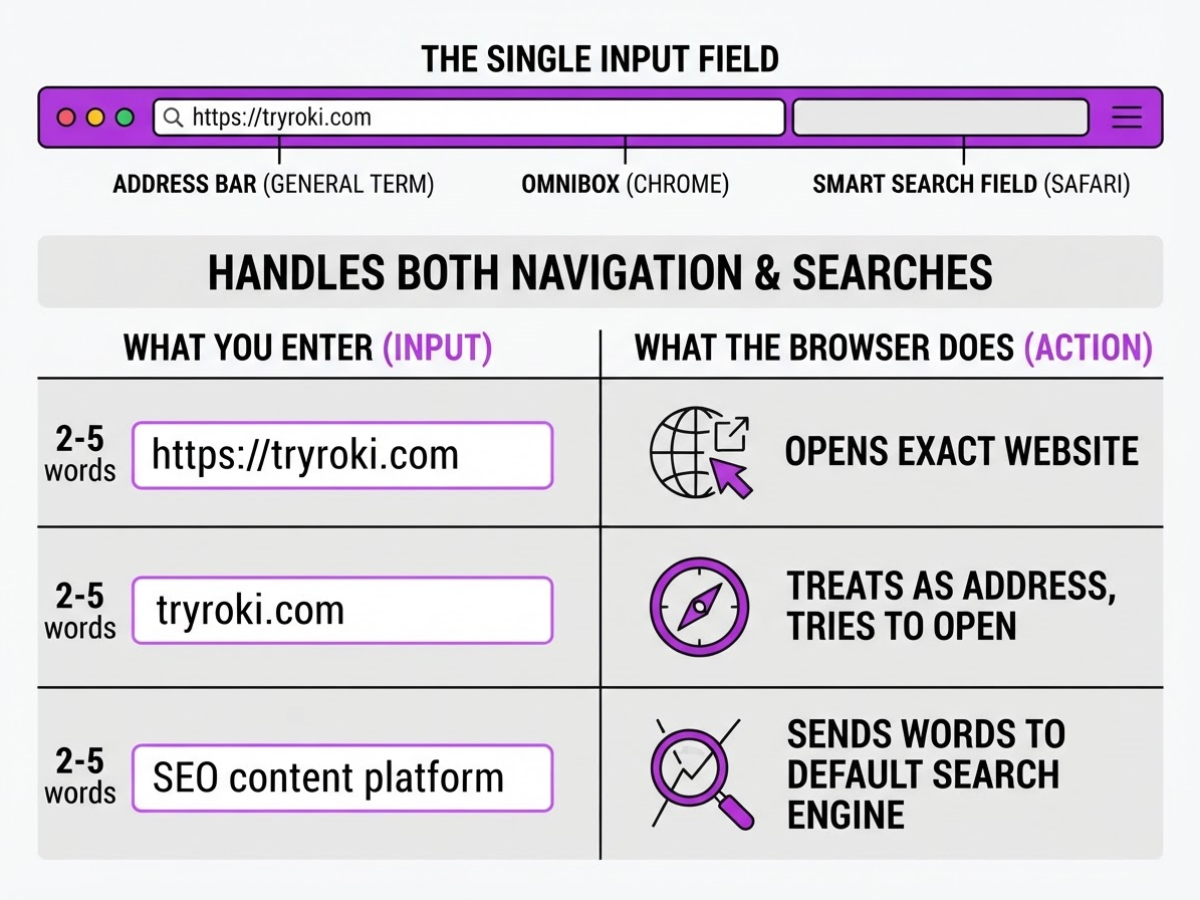
When I explain the search or type URL app to new users, I start with the field at the top of the browser window. It has several names: address bar, Omnibox in Chrome, and Smart Search field in Safari. The names differ, but the job is similar: one box handles both website navigation and web searches.
Chrome calls its combined address bar the Omnibox, while Firefox and Safari use the same basic idea. You no longer need one box for addresses and another for searches. That sounds simple, but the browser still has to guess what you meant.
| What you enter | What the browser usually does |
|---|---|
https://tryroki.com | Opens that exact website |
tryroki.com | Treats the domain as a website address and tries to open it |
SEO content platform | Sends the words to your default search engine |
tryroki | Searches for the term or tries common domain variations |
A complete URL gives the browser a clear destination. It includes the protocol, such as https://, and the domain name. If you enter only tryroki.com, browsers usually add the missing protocol automatically. If you type an incomplete phrase such as best content tools, the browser recognizes ordinary language instead and submits it to your default search engine.
That decision is convenient, but it is not perfect. A misspelled domain can produce search results instead of the site you wanted, while a brand name can open an unexpected page or trigger a search. You can learn how to type a URL correctly before relying on memory.
Pro Tip: Show beginners the same input twice, once as a complete URL and once as a brand name, so the browser’s decision becomes visible.
The next section shows what happens after you enter a website address.
How to Search or Open a URL Step by Step
From my own browser testing and customer support, the address bar remains the quickest way to search or type a URL app. The annoying part is that it accepts both search terms and web addresses, so one typo can send you to an unrelated result instead of the site you wanted.
-
Focus the address bar. On a desktop, click the field at the top of Chrome, Edge, Firefox, or Safari. In Chrome, press Ctrl+L to select the current address immediately. Chrome documents Ctrl+L as the shortcut for jumping to the address bar, and Edge uses the same shortcut to select its URL field.
-
Enter a search or address. Type
weather in Bostonwhen you want search results. Typeexample.comwhen you know the site, then press Enter. Chrome searches with your default search engine when you enter terms instead of a complete address. -
Use the right URL detail. Include
https://when you want to specify a secure connection or paste a complete link, such ashttps://example.com/login. Add a subdomain when the service uses one, such asshop.example.com, and keep the path, such as/account, if it points to a particular page. Add a query string after?when the link includes instructions or filters, for exampleexample.com/search?q=shoes.
Pro Tip: Use Ctrl+L before pasting a URL so you replace the current page address instead of accidentally typing into a webpage field.
-
Use Edge’s search shortcut when useful. Press Ctrl+L to replace the current address, or press Ctrl+E or Ctrl+K to open a search query in Edge’s address bar. This helps when a page has a stubborn form field that keeps stealing your keystrokes.
-
Follow the mobile flow. Open Chrome on your phone, tap the address bar, and type a website address or search phrase. On Android, Chrome lets you tap a suggested result, Go, or Continue to proceed, as Google’s mobile instructions explain. Suggestions can help, but they can also distract you from the exact address you meant to open.
-
Verify before sharing anything. Check the domain name in the address bar before entering a password, payment detail, or personal information. Look for misspellings and unexpected endings, such as
example-login.cominstead of the company’s real domain.
If a mistyped entry opens the wrong page, press Ctrl+L or tap the address bar, correct the text, and try again. Browser differences matter more when the entry is ambiguous.
Search Bar vs URL Bar in Chrome, Firefox, and Safari
The label changes, but the job stays nearly identical. Chrome calls its combined field the Omnibox, Firefox calls it the address bar, and Safari uses the name Smart Search field. In each browser, you can paste https://example.com to open a site or type weather tomorrow to send a query to your default search engine.
I have watched people hesitate because Safari says “Search or enter website name” while Chrome shows a more compact prompt. That wording is cosmetic. The real difference is where each browser places suggestions, search-engine controls, and mobile buttons. Firefox accepts either search terms or a specific web address in its address bar, while Safari’s Smart Search field handles both web searches and direct navigation.
| Browser | Desktop behavior | Mobile considerations | Useful shortcuts |
|---|---|---|---|
| Chrome | Omnibox opens URLs or searches with your default engine. | Tap the top field, type, then tap a result or Go. The field can move lower in some layouts. | Ctrl+L focuses it; Ctrl+Enter adds www. and .com to a site name. |
| Firefox | Address bar mixes URLs, searches, history, bookmarks, and suggestions. | The keyboard and suggestion list can take most of the screen, so check the full text before submitting. | Ctrl+L focuses it; type @ to choose a search engine shortcut. |
| Safari | Smart Search field combines navigation and search, with Apple’s own wording and icons. | The field often sits at the bottom or top depending on your tab layout and iPhone settings. | Command+L focuses it on Mac; tap the field on iPhone or iPad. |
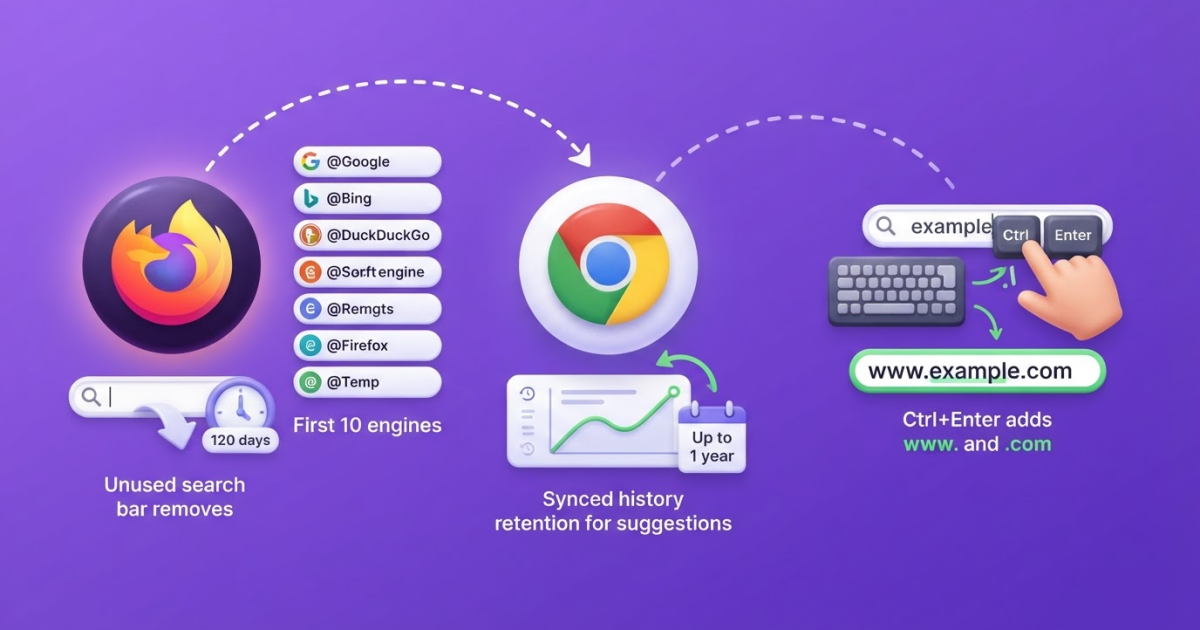
Firefox’s @ shortcut is useful when you do not want to change your default engine. Type @, then select one of the first 10 available search engines shown by Firefox. It is a small feature, but less annoying than opening settings every time you want a different search provider.
Pro Tip: Do not compare browser brands by appearance alone. Compare which search engine receives an ambiguous query and which shortcut focuses the field.
For a practical refresher on entering addresses correctly, use this beginner’s guide to typing a URL. The next section covers incomplete, misspelled, or protocol-free entries.

Five Address-Bar Mistakes That Cause Confusion
The quickest diagnosis is to inspect what you typed before blaming the search or type URL app. I have watched users reach a convincing search result, click the first listing, and assume the browser “changed” their address. Usually, one small character sent the request somewhere else.
- You omitted a dot or used a space.
examplecomandexample comare not the same asexample.com. The browser can treat either version as a search query instead of a domain. - You misspelled the brand or used an incomplete domain. Typing
acmedoes not always open Acme’s website. Chrome’s Omnibox accepts both web addresses and search queries, so a short brand name often goes to the default search engine. Use this beginner’s guide to typing a URL when you are unsure where each part belongs. - You chose the wrong extension.
.com,.org,.net, and country extensions can lead to different owners, a parked page, or no site at all. Never assume the first result is official because the logo looks familiar. - You changed the path or punctuation.
/login,/log-in, a missing slash, or an extra period can produce a 404. A question mark or copied tracking text can also send you to an unexpected page. - You ignored a browser security warning. A wrong domain, expired certificate, or unsafe connection can trigger a warning. Do not enter a password or payment detail to “see if it works.”
When a page looks wrong, retype the address slowly, then add https:// before the domain. Test the homepage without the path, such as https://example.com, and confirm whether it loads. If it does, use the site owner’s official link from a verified social profile, invoice, or support page. Chrome also documents Ctrl+L for selecting the address bar, which helps you replace the entire address instead of editing one hidden character.
That check takes less than a minute and prevents the expensive mistake of trusting a search result before verifying the domain. Next, look at the privacy and suggestion settings behind those results.
Privacy, Suggestions, and Better Address-Bar Habits
Autocomplete saves time, but it does not verify that a destination is safe, accurate, or even the site you intended to open. A convincing lookalike domain can appear beside the genuine one, and an old history entry can point to a page that has moved. I treat suggestions as shortcuts, not recommendations.
Your browser also needs a rule for ambiguous text. If you type best running shoes into Chrome’s Omnibox, it sends the query to your default search engine. If you type example.com, it attempts direct navigation. Change the default search engine, and the results, privacy terms, ads, and suggestion quality change with it. Firefox and Safari use the same combined-field idea, although their menus and controls differ.
Improved suggestions bring a real privacy trade-off. With the setting enabled, Chrome can send your typed address-bar text, IP address, and locally stored search information to the default search engine to generate autocomplete suggestions. Chrome can also retain synced browsing history in your Google Account for up to one year for personalized suggestions. That may feel useful on a shared workflow, but I do not leave it enabled without checking who controls the account and device.
Use this simple rule when deciding what to type:
- Known destination: Enter the full URL, such as
https://www.example.com, and check the spelling before you press Enter. If you manage domains, comparing affordable domain and hosting options can also help you avoid confusingly similar names. - Discovery or comparison: Enter a phrase such as
best project management software for a small teamand let your default search engine return options. - Unclear suggestion: Ignore it, finish typing the address, or open a fresh search. Do not treat a sponsored result or autocomplete entry as a safety certificate.
For website owners, test both paths. Search your brand name and confirm the correct site, then test non-branded phrases that a new customer might use. This catches problems that direct navigation hides, including weak search visibility, misleading competitors, and pages that work only after a redirect. Our guide to using the search-or-type-URL address bar covers the basic input choices. The next step is understanding what happens after the browser receives them.
My honest take on the search-or-type-URL prompt
I treat “search or type URL” as a small interface detail with a useful business lesson: intent matters more than browser terminology. When I already know the destination, I type or paste a verified URL. That removes a search step and lowers the chance of landing on a similarly named site. If I am researching a topic, I use a query, inspect the results, and question the first suggestion instead of treating it as the answer.
Here’s the part many people miss: autocomplete is not always a productivity feature. It can repeat an old habit, surface an imitation domain, or blur the difference between a website and a search result. I have seen people click a familiar-looking suggestion without checking the address, then wonder why the page feels wrong. That mistake is avoidable, but browser convenience encourages it.
For site owners, I would test both journeys. Can someone reach your brand through a direct address, and can a new visitor discover it through an unbranded query? Those are different jobs, and one does not prove the other. At TryRoki, I see our role as helping turn those search opportunities into a repeatable content and visibility process. We can support the work, but we cannot replace the judgment needed to verify a destination or decide whether a result deserves trust.
— Daniel/Aleksandra
Turn search visibility into a repeatable workflow
Typing a phrase into the address bar shows how people search, but that is only the starting point. To get discovered in Google and AI search engines, you still need useful pages, a publishing habit, and a sensible presence in conversations where people ask relevant questions. Most teams struggle with the unglamorous part: choosing what to write next and finding discussions worth joining.
That is the gap I built Roki AI’s website content workflow to cover. It can generate website content on autopilot and give you 3 to 10 practical tasks each week. The Reddit workflow surfaces conversations where a thoughtful answer may help. Not every reply needs a link, and forcing one usually hurts credibility. Setup takes judgment, too, so treat the suggestions as a working list rather than autopilot for your reputation. If you want a structured next step, explore Roki’s SEO features or Reddit workflow.
Frequently Asked Questions
That message describes the browser’s combined address bar, where you can enter either a search query or a website address in 1 field. If your text does not look like a direct URL, the browser sends it to your default search engine instead.
Enter the site’s domain and extension, such as example.com, then press Enter instead of choosing a search suggestion. If it still opens search results, check the spelling and type the full address, such as https://example.com, which gives the browser a clearer instruction.
Yes, type your query directly into the address bar and press Enter or tap Go. The browser sends it to the configured default search engine, so the results can differ from Google if another provider is selected in your settings.
In Chrome, Ctrl+Enter can add www. to the beginning and .com to the end of a simple name, then open it in the current tab. It is less useful for domains such as .org, country-code extensions, or addresses with paths, and I would not rely on it for those 3 cases.
An address-bar suggestion is a convenience, not a safety guarantee, so check the spelling, domain, and connection before sharing private information. Autocomplete can come from your history, browser settings, or search engine suggestions, and even a familiar-looking result can lead to the wrong site.
Written by Daniel/Aleksandra.
Recommended reads
- Search Or Type Url How To Use The Address Bar
- How To Type A Url A Beginner S Guide
- Search Or Enter A Website Your Step By Step Guide
- What Is Google Url A Clear Guide To Understanding Urls
Sources
- Set default search engine and site search shortcuts - Computer - Google Chrome Help
- Search with the Firefox address bar
- Get started with Safari on Mac
- Chrome keyboard shortcuts - Computer - Google Chrome Help
- Keyboard shortcuts in Microsoft Edge
- Search the web in Chrome - Android phone and tablet - Google Chrome Help
- How Chrome keeps your URL and search data private - Computer - Google Chrome Help
- Add the Search bar to your Firefox toolbar
- AVM Cloud