Aleksandra D.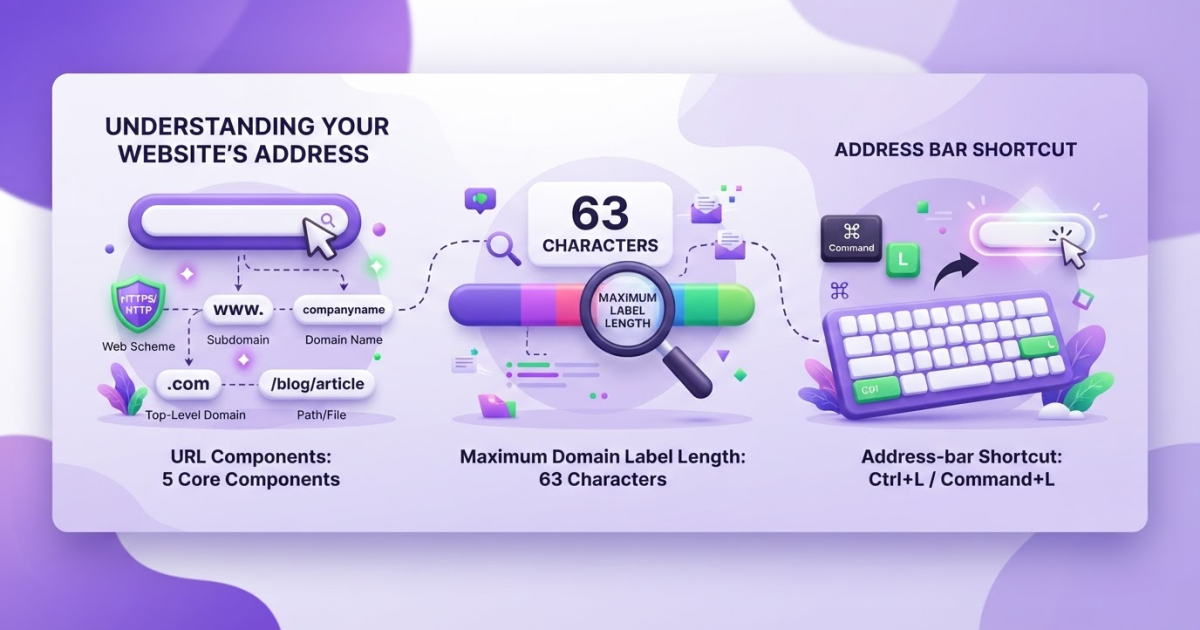
Click your browser’s address bar, type the complete URL, and press Enter on desktop or Return on some keyboards. A URL commonly includes 2 key parts, the protocol such as https:// and the domain such as example.com, so check both before opening it.
You have a web address ready to use, but the search box and browser address bar can look almost identical, especially on a phone. One wrong character can send you to a search results page, an error message, or a site you never intended to visit. RFC 3986 describes a URL as a sequence of components including the scheme, authority, path, query, and fragment, which explains why punctuation matters. This guide shows how to type a URL in Chrome, Edge, Firefox, and mobile browsers, then check for typos, missing punctuation, spaces, and links that look unsafe.
Key Takeaways
| Point | Details |
|---|---|
| Use Address Bar | Enter the URL in your browser’s top address bar, not a webpage’s search field. |
| Include Scheme | Type the complete beginning, such as https://, before the domain name when the browser needs it. |
| Check Punctuation | Check every colon, slash, dot, question mark, and hyphen because 1 missing character can lead to the wrong destination. |
| Press Enter | Press Enter on Windows or Linux, or Return on macOS, after entering the address to load it. |
| Verify Destination | Before sharing information, confirm that the domain matches your intended site and that the connection uses HTTPS. |
Where to Enter a URL in Your Browser
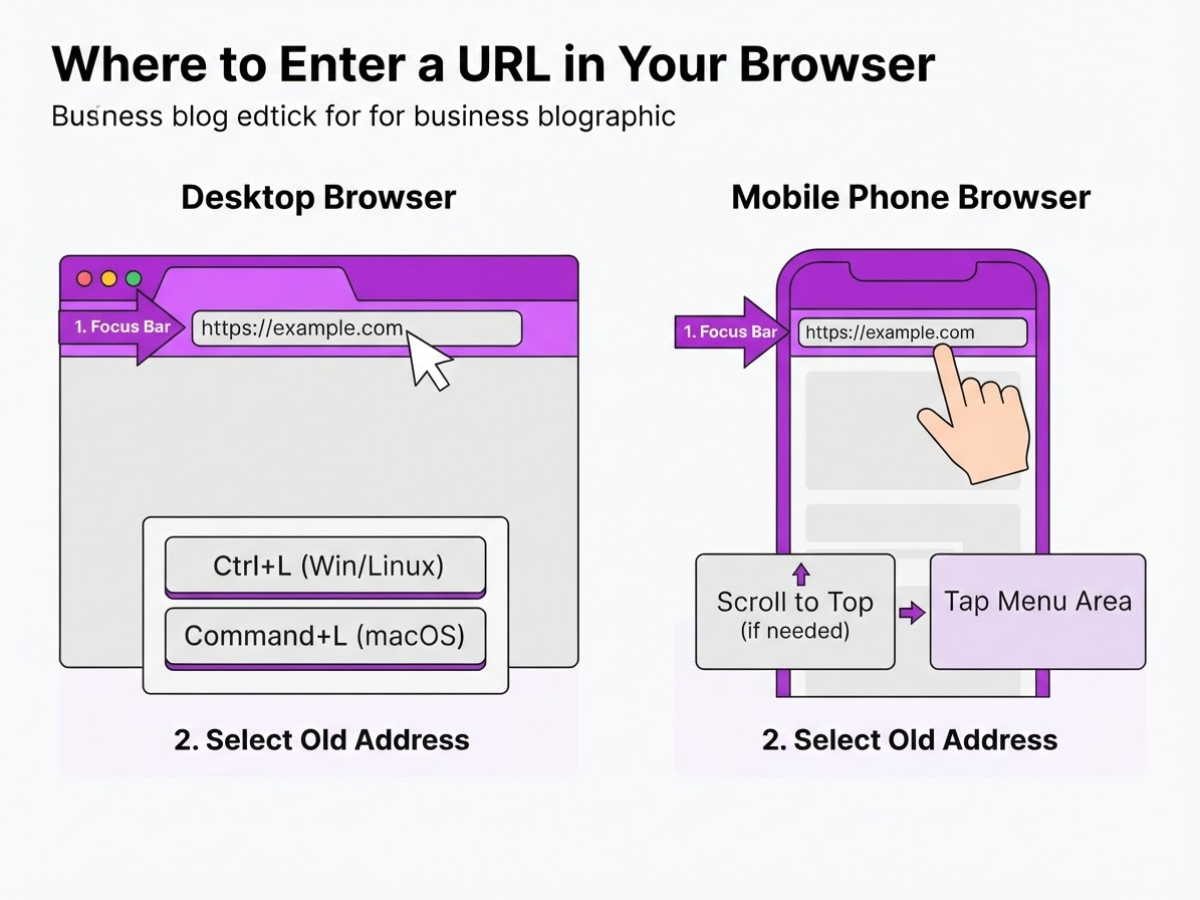
The address bar is the long field across the top of a desktop browser. It usually shows the current page address, such as https://example.com. A search box belongs to a search page, while the address bar can open a specific web address directly. On a phone, the address bar normally sits at the top of the screen, although some browsers move it to the bottom.
Use this sequence on a computer or phone:
- Focus the address bar. With a mouse, click once inside the current address at the top. On a phone, tap the address field. If you cannot see it, scroll to the top of the page or tap the browser’s menu area first.
- Select the old address. Firefox users can press Ctrl+L on Windows or Linux, or Command+L on macOS. This selects the address bar without requiring precise mouse movement. On a phone, tapping the field often selects the current address automatically, but not every browser does so.
- Type or paste the URL. Enter the complete address, such as
https://tryroki.com, or paste it from another app. Check the spelling, especially the domain ending and any slashes, question marks, or hyphens. - Review before loading. Make sure you typed into the address bar, not a page’s search field. A pasted address can also include unwanted spaces or extra words, which can send you somewhere unexpected.
- Press Enter or Return. On a phone, tap the Go, Enter, or arrow key on the keyboard. Chrome also lets you type text into its address bar and press Enter to submit either a search or a navigation request, so plain words open search results instead of a website.
Pro Tip: If the browser has selected only part of the current address, use Ctrl+A or Command+A before typing so the old URL is fully replaced.
Edge users can save another step with Ctrl+L to select the URL. If a URL is already copied, Ctrl+Shift+L pastes it and opens it directly, as described in Microsoft’s Edge shortcut guide. For a fuller example, see this guide on how to enter a web address. The next useful skill is recognizing each URL component so a typo stands out.
Read the Parts of a URL Before You Type It
A URL is easier to type when you can separate its job into a few recognizable parts. I use this example when explaining links to customers: https://example.com/products?color=blue#reviews. RFC 3986 describes this general structure as a scheme, authority, path, query, and fragment.
| Part | Example | What it does | Keep it? |
|---|---|---|---|
| Scheme | https | Tells the browser which method to use. It comes first, followed by a colon. https is the usual choice for secure web access. | Usually yes when copying |
| Authority or host | example.com | Identifies the website. It can also include a port, such as :8080. | Yes |
| Path | /products | Points to a page or resource inside that website. | Yes if the link targets a specific page |
| Query | ?color=blue | Sends extra instructions or filters to the page. The question mark starts it. | Keep it when it changes the result |
| Fragment | #reviews | Jumps to a location within the page. The number sign starts it. | Keep it when it opens a specific section |
The host is the part I check most carefully. A convincing-looking subdomain can still belong to an unexpected domain, so read the ending from right to left before you press Enter.
Pro Tip: When checking a link, read the domain from right to left at the end of the hostname; the registered domain is usually more useful than a familiar-looking subdomain.
In casual browser use, you can often omit https://, and the browser can add it automatically. You can also leave out a trailing slash after the domain. That convenience has limits, though. If you are copying a link from an email, document, or support message, preserve the full scheme, path, query, and fragment because removing ?color=blue can show the wrong products, while removing #reviews can open the page at the top.
For a slower walkthrough of entering an address, see this beginner guide to typing a web address. With the parts identified, you can check the address for errors before navigating.

Fix a URL That Does Not Open
A URL that fails to open is not always mistyped. Check the address before blaming your browser, especially if you copied it from an email, PDF, or message where invisible characters can sneak in.
Common entry mistakes include:
- Leaving out
https://when the site needs a secure connection. - Adding a space before or after the address.
- Using the wrong dot, such as a comma, a period in the wrong place, or a missing dot between the site name and domain extension.
- Doubling punctuation, such as
https://https://or..com. - Copying a trailing quotation mark, bracket, comma, or other character from surrounding text.
Pro Tip: Paste a suspicious URL into a plain-text field first; this can expose leading spaces, line breaks, or quotation marks copied from an email or document.
If you suspect hidden spaces or formatting marks, delete the entire address and retype it manually. Do not repair one visible character at a time. Spaces and other unsupported characters are normally percent-encoded by the URL parser, but a copied address can still point to the wrong page or produce an ugly error.
Before entering a password or payment details, compare the domain carefully with the intended website. Check every letter before the first single slash after the domain, and watch for lookalike spellings such as paypa1.com instead of paypal.com. A convincing page does not prove that the address is safe.
If the spelling looks right, open the address in another browser or a private window. An extension, stale cache, login session, or browser setting can interfere. You can also remove an unnecessary query beginning with ? or fragment beginning with #, but only if you know those parts are not needed for a search, filtered result, login flow, or specific section of the page. This beginner’s guide to typing a web address shows where those pieces belong.
A “not found” message usually means the page moved, expired, or was deleted, not that your typing failed. A “forbidden” or login message points to an access restriction, account requirement, location limit, or private page. If another browser shows the same result, search the site’s homepage for the page or ask the owner for a current link.
When those checks fail, separate a dead page from a browser or network problem before changing more URL characters.
Type and Share URLs Safely on Any Device
Manual typing makes sense when the address is short, familiar, and easy to verify, such as https://tryroki.com. For a long product page or a URL with several symbols, copy it instead. One missing slash, letter, or number can send you to the wrong page or produce a frustrating error. Our clear beginner’s guide to typing a web address covers the basic mechanics, but judgment matters more than speed.
| Situation | Safer choice |
|---|---|
| Short address you know well | Type it manually |
| Long URL from a trusted page | Copy and paste it |
| Link shown in a poster or screen | Scan the QR code, then inspect it |
| Page you visit often | Bookmark it |
| You know the business but not its exact page | Search for the official site |
Treat links in email, chat, and social posts as untrusted until you inspect the visible domain. Look for the real name immediately before the first single slash, and watch for misspellings, extra hyphens, or a familiar brand buried in a subdomain. A lock icon does not prove that the page belongs to the company you expected.
On a phone, tap the address bar, replace the current text rather than appending to it, and press Go or Enter on the keyboard. This small step prevents a common annoyance: accidentally searching for a URL fragment inside the old page address.
Do not delete a long query string just because it looks messy. A URL has distinct components, including a scheme, authority, path, query, and fragment, as RFC 3986 explains. Tracking parameters can record campaign or referral data, while other parameters select a product, language, account, or search result. The query portion is part of the URL’s search property, so removing it blindly can change the page or break attribution.
As a site owner, I check URLs before publishing them, sharing them with customers, and monitoring traffic. Accurate links protect visitors and preserve useful reporting, which is why monitoring website traffic starts with clean, intentional URLs. The remaining question is when manual typing is actually worth the effort.
My honest take on learning how to type a URL
I see URL entry as a small digital skill with an outsized confidence payoff. When I help customers or teammates fix a browser problem, the issue is usually not technical knowledge. They clicked the wrong field, missed one character, or trusted a lookalike domain without checking it.
My contrarian view is that manually typing a long URL is usually neither the safest nor the fastest choice. Copying the address from a trusted message, saving a bookmark, or opening the known domain and navigating from there often prevents mistakes. A copied URL can still be malicious, so I check the domain before opening it. That extra second matters more than speed.
Manual typing still has a place. Short addresses are easy to enter, and typing one yourself can help you understand the parts of a URL, such as the domain, path, and query string. It also helps when a link is broken or you are troubleshooting a redirect.
As the owner of TryRoki, I also treat URL literacy as basic publishing knowledge. A missing character can send a visitor to an error page, while an unclear link can make a legitimate page look suspicious. I prefer a repeatable habit over browser trivia: focus the address bar, enter or paste carefully, inspect the domain, then submit.
— Daniel/Aleksandra
Turn Better URL Habits Into Better Content Workflows
Typing a URL correctly gets someone to a published page, but it does not solve the harder problem: having useful pages worth sharing. As a site owner, I have seen teams spend too much time fixing links while their content workflow quietly stalls. Broken URLs frustrate visitors, and thin pages give search engines little reason to return.
TryRoki helps you create high-quality website content on autopilot, then gives you 3–10 weekly tasks to work through. Those tasks can include ways to improve your visibility in Google and AI search engines, plus relevant Reddit conversations where mentioning your site can make sense. It is not magic, and you still need to review drafts and choose tasks carefully. If you want to see how the workflow fits together, read how Roki AI streamlines SEO content work.
Frequently Asked Questions
Yes, but Google can treat the text as a search query instead of opening the exact page, especially if the address is missing https:// or contains a typo. For direct navigation, paste the complete URL into your browser’s address bar and press Enter once.
Remove accidental spaces before opening or sharing the address, because URLs normally use %20 to represent a space. Check the copied link character by character, since even 1 extra space can send you to an error page or change the destination.
The scheme and hostname usually ignore capitalization, but a website’s path can treat uppercase and lowercase letters as different addresses. Keep every letter exactly as provided, because changing just 1 character in /Products to /products can produce a missing-page error.
Focus the browser’s address bar, select the full address, and press Ctrl+C on Windows or Linux, or Command+C on macOS. On mobile, tap the address bar, choose Copy, then paste the link and review the domain before sharing it.
A question mark introduces a query, which can contain parameters such as filters, search terms, or tracking codes, while a hashtag introduces a fragment that points to a location within the page. Treat these as meaningful parts of the address, because deleting either 1 can change what opens or where the page positions you.
Written by Daniel/Aleksandra.
Recommended reads
- How To Enter A Web Address A Step By Step Guide
- How To Type A Web Address A Clear Beginner S Guide
- What Is Google Url A Clear Guide To Understanding Urls
- Url Link Google Create And Check Links
Sources
- RFC 3986 - Uniform Resource Identifier (URI): Generic Syntax
- RFC 3986 - Uniform Resource Identifier (URI): Generic Syntax
- Access toolbar functions using the keyboard
- Keyboard shortcuts in Microsoft Edge
- Search the web in Chrome - Computer - Google Chrome Help
- URL Standard
- 2.2 Names registered in the TLD must have at least 1 character and not more than 63 characters in ASCII characters or Arabic punycode
- Uniform Resource Identifier (URI) Schemes
- URL API - Web APIs | MDN