Daniel D.
A URL is a page’s web address, while a link is the clickable HTML connection that points to it. To help Google find and understand your pages, use crawlable links, clear URL structures, and Google Search Console to submit and inspect URLs, while checking fragments, canonicals, redirects, and sitemaps for errors.
When I review a site’s SEO setup, I often find that “URL,” “link,” and “Google link” are being used as if they mean the same thing. They do not: one identifies a page, one connects pages, and Google’s systems rely on links for both discovering new pages and evaluating relevance. That distinction matters when a page fails to appear in search, a button cannot be crawled, or a redirect sends visitors somewhere unexpected. This guide shows you how to identify the right URL, create an HTML anchor, choose useful anchor text, test indexability, add a sitemap URL, and fix canonical or redirect issues.
Table of Contents
- What Does “URL Link Google” Actually Mean?
- How to Create a Google-Crawlable URL Link
- URL, Sitemap, Canonical, or Redirect: Which One Do You Need?
- A Practical Google URL Check Workflow
- Common URL Link Mistakes That Prevent Clean SEO Signals
- My honest take on URL links and Google
- Turn URL improvements into a repeatable SEO workflow
- Frequently Asked Questions
- Recommended reads
Key Takeaways
| Point | Details |
|---|---|
| URL Versus Link | A URL identifies a page, while an HTML link uses the href attribute to send users and crawlers to it. |
| Use Crawlable HTML | Create links with an <a> element and an href attribute instead of relying only on JavaScript events or missing href values. |
| Write Useful Anchors | Use concise, descriptive anchor text that explains the destination rather than generic wording such as “Click here.” |
| Inspect Before Troubleshooting | Google’s URL Inspection tool shows indexed-version details and tests whether a live URL might be indexable. |
| Protect URL Changes | Use matching server-side permanent redirects when moving pages, and remember that 1 sitemap supports up to 50,000 URLs or 50 MB uncompressed. |
What Does “URL Link Google” Actually Mean?
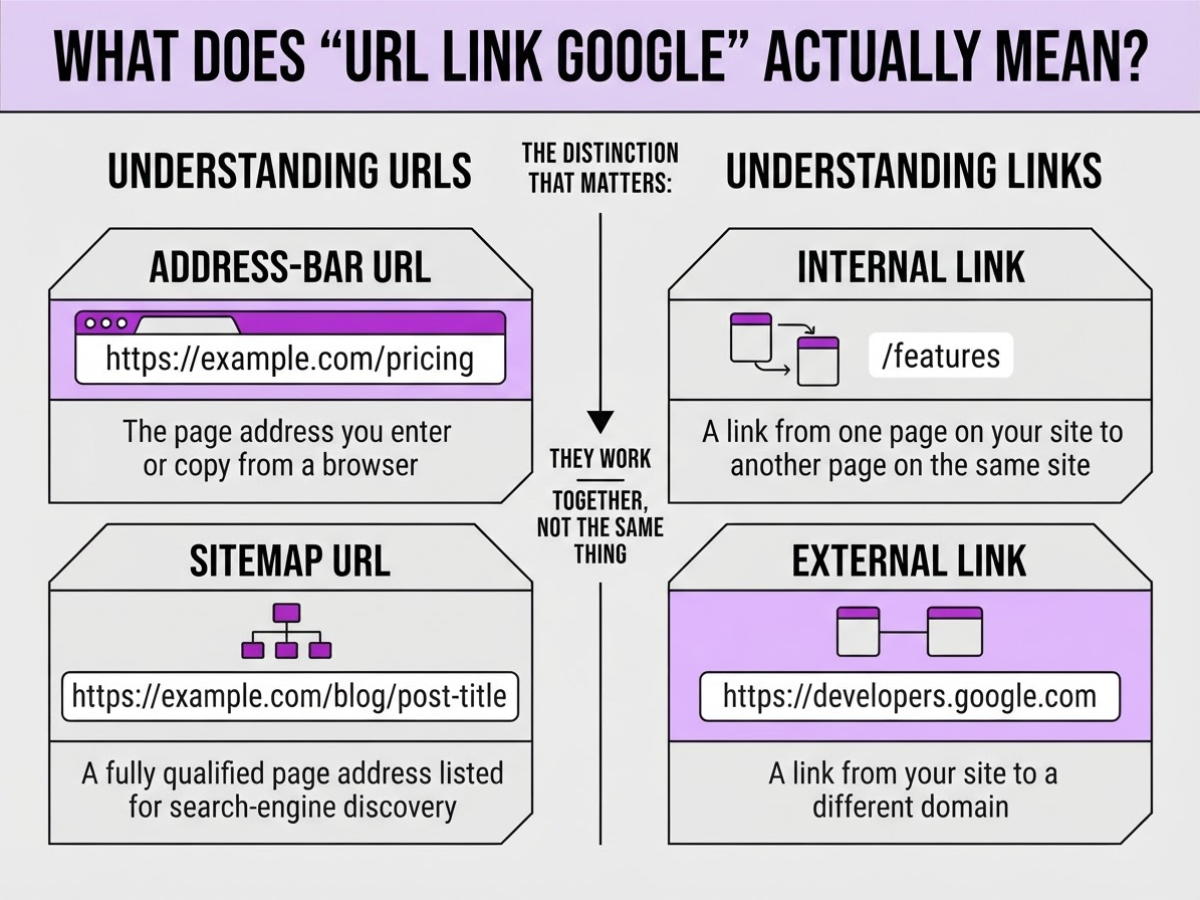
When I review a customer’s “URL link Google” issue, I usually find a terminology mix-up first. A URL is the address of a resource, such as a webpage, image, PDF, or sitemap. A link is the connection that points from one resource to another. They work together, but they are not the same thing.
Here is the distinction that matters:
| Term | What it means | Example |
|---|---|---|
| Address-bar URL | The page address you enter or copy from a browser | https://example.com/pricing |
| Internal link | A link from one page on your site to another page on the same site | /features |
| External link | A link from your site to a different domain | https://developers.google.com |
| Sitemap URL | A fully qualified page address listed for search-engine discovery | https://example.com/blog/post |
| Google Search result URL | The destination address Google displays or redirects you toward after a search | The page behind a result listing |
That last category causes plenty of confusion. A URL copied from a Google result is not automatically the page’s preferred or canonical address. Search URLs can also contain tracking parameters, redirects, or other details that you should not paste into your site as the main link.
Pro Tip: When diagnosing a “Google link,” first copy the page’s canonical address from the site itself rather than assuming the URL shown in a search result is the preferred version.
On a webpage, a link normally looks like this:
<a href="https://example.com/seo-guide">read our SEO guide</a>
The destination URL is https://example.com/seo-guide, while “read our SEO guide” is the visible anchor text. I prefer descriptive anchor text over “click here” because it tells visitors and Google what they will find. Google generally crawls links built as HTML anchors with an href, and uses links to discover pages and evaluate their relevance.
Still, placing a URL online does not guarantee crawling, indexing, or rankings. robots.txt, noindex, weak site structure, duplicate content, server errors, and low-value pages can all get in the way. For a clearer breakdown of the address itself, see what a Google URL means. Next, we can look at how to create and submit a URL Google can actually find.
How to Create a Google-Crawlable URL Link
Start with the page you want visitors and Google to reach. A link is only useful if its destination works, so open the final URL in an incognito window and confirm it loads the intended page with a successful status, not a redirect chain, 404, or soft error page. If you are still unclear about URL structure, this clear guide to understanding URLs is a useful reference.
-
Choose and test the destination. Copy the final HTTPS URL from the browser, then check its spelling, capitalization, trailing slash, and query parameters. Decide whether parameters such as
?ref=newsletterare genuinely needed. A small typo can send readers to the wrong page, while unnecessary parameters can create multiple URL variations that are difficult to manage. -
Add a normal HTML link. Use an
<a>element with a realhrefvalue:
<a href="https://example.com/guides/url-links">how to create crawlable URL links</a>
Google generally crawls links when they use an HTML anchor element with an href attribute. Do not rely on a click handler, a button that only runs JavaScript, or an empty href. Those shortcuts often work in your browser but create unnecessary crawling problems.
- Write specific anchor text. Name the destination’s subject, not the action. “Read more” and “click here” tell users almost nothing. Google recommends concise, descriptive anchor text that makes sense independently, so “download the accessibility checklist” is better when that is exactly what the linked page contains.
Pro Tip: Read the anchor text without the surrounding paragraph; if the destination is unclear, the wording is probably too generic.
-
Pick the right URL format. Use an absolute link such as
https://example.com/aboutwhen content may be copied, syndicated, emailed, or rendered outside its usual site context. A relative link such as/aboutis practical inside page HTML because it follows the current domain and is easier to maintain during staging. Do not confuse this choice with sitemap rules: Google recommends fully qualified absolute URLs in sitemaps, even when your page HTML uses relative paths. -
Run a final crawl check. Test the rendered link, inspect the destination response, and confirm HTTPS stays consistent. Fix links that point to an old redirect, an error page, a misspelled path, or a URL with a broken parameter. Editors should verify the text and destination; developers should test templates, redirects, and deployment environments before publishing.
With the link built and checked, the next step is verifying how Google sees the page rather than assuming a browser test tells the whole story.
URL, Sitemap, Canonical, or Redirect: Which One Do You Need?
The fix depends on what you want Google and your visitors to do with the address. I have seen teams build more internal links when the real problem was a duplicate URL, or add a canonical when an old page should simply send everyone to its replacement. Those choices create different outcomes.
An on-page link is for navigation and discovery. Use a normal HTML <a href="..."> link when another page should remain available and visitors reasonably want to open it. Descriptive anchor text helps people understand the destination, and Google can use crawlable links to discover pages. For broader URL inventories, use a sitemap with complete, absolute URLs. A sitemap lists URLs for crawlers; it does not replace useful links between related pages.
A canonical identifies the preferred representative among duplicate or very similar pages. For example, product filters can create /shoes?color=black and /shoes?color=blue versions that should consolidate signals around one main product listing. Google treats a canonical URL as the representative URL for that group, but your chosen canonical remains a hint, not an order. Check the implementation with a canonical link checker instead of assuming the tag worked.
A permanent redirect is different. It sends users and crawlers from the old address to the new one, making it the right choice for a retired page, a domain migration, or a permanent URL change. A canonical leaves both URLs accessible and merely states which one you prefer.
Pro Tip: Do not use a canonical tag to hide a page that should permanently disappear; use a redirect when the old address should lead visitors to a new one.
Fragments such as #reviews or #/products are poor substitutes for distinct content URLs. Google generally does not support fragments for changing page content. If a JavaScript application changes the visible content, use the History API to update real paths such as /products and /reviews.
| Your actual problem | Use this | Why |
|---|---|---|
| Help visitors reach a related page | On-page link | Supports navigation and discovery |
| Provide Google a list of important URLs | Sitemap | Supplies URL inventory, not page relationships |
| Consolidate duplicate or near-duplicate pages | Canonical | Signals the preferred representative |
| Replace or retire an address permanently | 301 redirect | Sends users and crawlers to the new URL |
| Change app content without a real URL | History API | Creates distinct, crawlable paths |
These tools improve discovery and consolidation, but none guarantees indexing. Use URL Inspection to see what Google actually indexed, then move on to the next technical check.

A Practical Google URL Check Workflow
After a page goes live, I check the URL as a visitor first and as Googlebot second. This catches embarrassing problems, such as a redirect to the staging site or a page that loads correctly for logged-in staff but shows an error to everyone else.
-
Open the exact URL in an incognito window. Paste the address into a private browser window, then follow every redirect. Confirm that the final destination uses HTTPS, loads without mixed-content warnings, and displays the intended title, text, images, and primary call to action. Test on mobile too. A page that spins for 10 seconds or shows a blank JavaScript shell is not ready for indexing, even if your CMS says “published.”
-
Inspect the HTML behind the page. Use “View source” for the original HTML, then inspect the rendered HTML in browser developer tools if the page relies on JavaScript. Check that important internal links use real
<a href="...">elements. Google generally crawls links when they use an HTML anchor with an href attribute, so a click handler without an href is a common, avoidable mistake. Check that the links point to the correct HTTPS URLs, not old paths or tracking-heavy duplicates. -
Run URL Inspection in Google Search Console. Enter the full URL under the correct property. The report shows Google’s indexed version, while the Test Live URL option checks the current page. Google’s URL Inspection tool can report index status and test whether a live URL might be indexable. The live result is more useful after a recent edit, because the indexed copy may still be old.
-
Read the status instead of guessing. “URL is on Google” means an indexed version exists. “Discovered, currently not indexed” means Google knows the URL but has not chosen to crawl or include it yet. “Blocked” points to robots.txt, an access failure, or a noindex directive. “Page with redirect,” “duplicate,” and “URL unavailable” each require a different fix. Do not request indexing repeatedly while the underlying signal remains unchanged.
-
Check the signals behind a failed live test. Compare the declared and selected canonical, inspect
robotsdirectives fornoindex, confirm internal links reach the page, and verify that the URL appears in the XML sitemap. A canonical is only a hint, so inconsistent signals can make Google select another address. This canonical link check guide helps when several versions compete. -
Document the next action. Save the inspected URL, timestamp, status, redirect chain, canonical, robots result, sitemap location, and a screenshot of the error. Record the code or template change you made before requesting indexing again. If the same failure returns, give that evidence to your developer instead of sending a vague “Google cannot see my page” message.
Once the URL passes these checks, you can evaluate whether its structure supports Google’s crawling and indexing requirements.
Common URL Link Mistakes That Prevent Clean SEO Signals
Small URL errors rarely stay small. In site audits, I have seen one inconsistent link pattern create duplicate pages, wasted crawl activity, and confusing reports in Search Console. I treat these as implementation faults first, not as mysterious ranking problems.
The mistakes I check first are:
- Generic anchor text: “Click here” and “Read more” hide the destination. Use concise text such as a clear guide to Google URLs, so visitors and Google can understand the linked page before opening it.
- Missing
hrefattributes: A styled<div>or button that only runs JavaScript may work for a person with a mouse, but it gives crawlers no dependable link to follow. Use a normal HTML<a href="...">element, then add scripting only where it serves a real interaction. - Multiple URL variants:
/Guide,/guide/,/guide,http://,https://, and parameter-heavy versions can all appear as separate addresses. Choose one protocol, capitalization style, slash pattern, and parameter policy, then use that format consistently in internal links. - Relative sitemap entries: A sitemap entry such as
/products/widgetis incomplete. Use a fully qualified URL, including the protocol and hostname, such ashttps://example.com/products/widget. - Missing redirects after a move: When you rename or restructure a page, leaving the old address to return a 404 breaks bookmarks and wastes existing signals. Map each old URL to its closest new equivalent with a server-side permanent redirect. Google says permanent redirects do not cause a loss in PageRank during URL changes, although redirect chains still create needless friction.
- Oversized or badly split sitemaps: One sitemap supports up to 50MB uncompressed or 50,000 URLs. Exceed either limit and split the files, then reference them through a sitemap index. Do not split randomly while leaving duplicate or redirected URLs in every file.
- Treating the canonical as law: A canonical tag expresses your preferred representative URL; Google can weigh it against redirects, internal links, sitemap entries, and page content. If you need a practical audit, use this canonical link check, but do not assume the tag overrides conflicting signals.
Fix problems in this order: repair broken links, make the markup crawlable, standardize canonical URLs, add redirects for retired addresses, and clean the sitemap last. That order prevents you from polishing a sitemap while the site still publishes contradictory links. The next section applies this sequence to a live URL check.
My honest take on URL links and Google
I see URL issues treated as ranking problems far too often. When I review a site, I start with three practical questions: Does the destination make sense, can Google crawl the link, and what does Google actually show after processing it? A URL that looks tidy in a spreadsheet means little if it redirects through several versions, returns the wrong status code, or leads to a page nobody wants to visit.
Here’s the contrarian point: adding more links is not automatically better. I would rather see 10 useful links with clear destinations than 40 repetitive anchors pointing at arbitrary URLs. A smaller, deliberate link structure often explains a site better than a crowded page. I also do not lose sleep over making every URL as short as possible. Clear wording, consistent naming, and stable page ownership matter more than removing six characters.
At TryRoki, I treat this as part of a weekly operating habit. We publish useful content, connect related pages thoughtfully, inspect important URLs, and act on the next meaningful task. The work is not glamorous, and tools occasionally surface issues that need manual checking. Still, that routine is more durable than chasing isolated technical tricks or assuming that a URL appearing in Google means the whole site is optimized.
— Daniel
Turn URL improvements into a repeatable SEO workflow
Use the technical foundation above, then turn it into a routine. I’ve seen site owners fix a few URLs, add internal links, and then abandon the work because nobody knows what to do next. That is where Roki AI’s weekly SEO tasks can help. It gives you 3 to 10 practical actions each week, such as filling content gaps, improving pages that matter, and finding relevant Reddit discussions where you can contribute without spamming links.
Roki AI can also create website content on autopilot, but you still need to review the ideas, facts, and internal links before publishing. Automation does not replace judgment, and rushed content creates more cleanup than progress. Start with your highest-value pages, connect them clearly, then use Roki AI to keep your SEO process moving instead of treating URL improvements as a one-time task.
Frequently Asked Questions
Highlight the text, press Ctrl+K on Windows or Cmd+K on Mac, then paste the destination URL and select Apply. On a website, use an HTML anchor such as <a href="https://example.com">descriptive text</a> so Google can read the link in the page markup.
A URL is the address of a web resource, such as https://example.com/page, while a hyperlink is the clickable element that opens that address. A hyperlink can show descriptive text like “read the guide” instead of displaying the full URL.
Open Google Search Console, enter the page in the URL Inspection tool, test the live URL, and select Request Indexing when the page is ready. Google does not guarantee indexing after one request, so check crawlability, canonical tags, page availability, and internal links before trying again.
Google often does not show a page because it is new, blocked, inaccessible, redirected, marked with a different canonical URL, or not selected for indexing yet. Use Search Console to compare the live URL with its indexed status, since repeated requests rarely fix a technical problem.
Use a complete absolute URL, such as https://example.com/page, rather than a relative path like /page. Google allows up to 50,000 URLs or 50 MB uncompressed in one sitemap, so split larger files into multiple sitemaps.
Written by Daniel/Aleksandra.
Recommended reads
- What Is Google Url A Clear Guide To Understanding Urls
- Google Crawler Simulator A Step By Step Howto Guide
- Canonical Link Check How To Verify Optimize For Seo
- Page With Redirect Google Search Console How To Fix Optimize
Sources
- URL Structure Best Practices for Google Search | Google Search Central | Documentation | Google for Developers
- SEO Link Best Practices for Google | Google Search Central | Documentation | Google for Developers
- Build and Submit a Sitemap | Google Search Central | Documentation | Google for Developers
- What is URL Canonicalization | Google Search Central | Documentation | Google for Developers
- URL Inspection tool - Search Console Help
- Site Moves and Migrations | Google Search Central | Documentation | Google for Developers